Save 3%
Select an image to view it. Click the main image to enlarge.
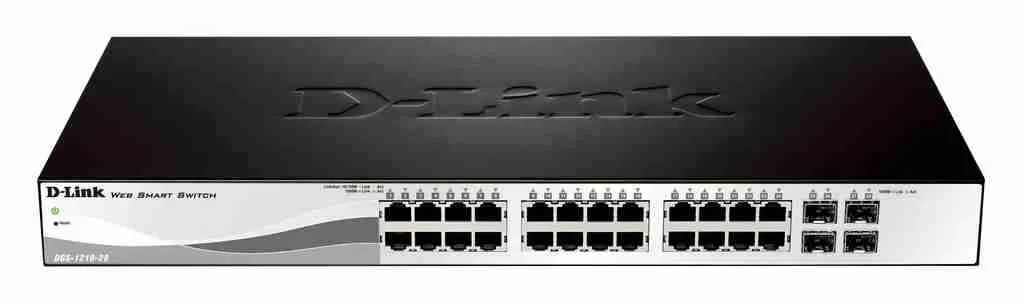
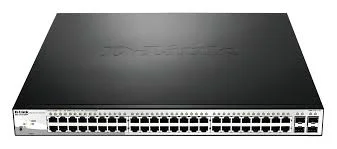
D-Link DGS-1210-52MP 52-Port Managed POE Switch Price in Kenya
In stock
KES 65,000.00
KES 67,000.00
You save KES 2,000.00
Buy D-Link DGS-1210-52MP in Kenya at Reisen SEO. Explore a managed Gigabit switch with 48 PoE ports, four combo uplinks, and a 370W power budget.
View product detailsNeed help choosing?
Talk to our team at +254 714 804 532
Product details
D-Link DGS-1210-52MP 52-Port Gigabit PoE Smart Managed Switch Price in Kenya
D-Link DGS-1210-52MP 52-Port Gigabit PoE Smart Managed Switch supports a planned managed network using its specific copper, optical, and power layout. It is useful when the installation needs controlled traffic paths and a clear uplink design. Select the exact model and supplied revision, then add compatible modules, cables, endpoint power, and configuration where required.
Request a current DGS-1210-52MP quotation from Reisen. Confirm the exact item, quantity, supplied package, taxes, warranty, and delivery terms. Include the required supporting parts and installation work so the order covers the intended working setup.

Choose the exact item, confirm the full quote, then agree payment and fulfillment.
Key Specifications
|
Feature |
Details |
|
Model or product |
DGS-1210-52MP |
|
Access ports |
48 × Gigabit PoE-capable RJ45 |
|
Additional links |
4 × Gigabit uplink interfaces; SFP or combo layout is revision-specific |
|
Documented PoE budget |
370W; confirm supplied revision |
|
PoE standard |
IEEE 802.3af/at on supported access ports |
|
Management |
Web-based smart management; use matching firmware guide |
|
Segmentation |
VLAN and supported traffic controls |
|
Optical speed |
1Gbps SFP class; not a 10G SFP+ switch |
|
Revision check |
Do not count both sides of a combo as independent ports |
|
Package |
Confirm power cable, rack parts and exact hardware revision |
48 PoE access connections and a shared 370W budget
The DGS-1210-52MP is a high-port-count smart managed PoE switch. The referenced generation provides 48 Gigabit PoE access ports, 4 additional Gigabit uplink interfaces, and a 370W shared PoE budget. Check the supplied hardware revision and whether its uplinks use combo connections. A 52-port title does not mean 52 PoE ports or 52 simultaneous maximum-power loads. The load plan must account for the actual endpoints, startup needs, and allowed per-port power. At this scale, the uplink layout and failure domain matter as well as the number of sockets. Keep camera, voice, staff, and management policies clear where the design requires separation. Verify the supported feature set in the matching firmware guide. Do not apply the specifications of a newer D-Link family or an MP variant to an unidentified older unit.
Compatibility

Check fit, interfaces, power and the complete intended role.
Match the whole installation: intended role, physical fit, power, signal, software, and the equipment at the other end. Similar connectors or product names alone do not establish a working combination.

Interface counts do not state throughput or simultaneous full-power capacity.
Build controlled switching around the real interfaces
A managed switch is useful when the LAN needs more than spare sockets. It can support a planned arrangement of VLANs, uplinks, monitoring, and other features offered by the exact model and software. Define the job before choosing menus. An access switch serving clients has different needs from an optical aggregation switch joining several network segments. Keep those roles visible in the design.
Prepare a port schedule that shows each local device, uplink, management path, and spare connection. Check whether ports are dedicated or part of a combo interface. A copper opening and SFP opening sharing one combo interface cannot be counted as 2 independent simultaneous links. Likewise, an SFP cage and an SFP+ cage have different supported speed roles. Read the actual specification for the supplied revision.
Match optics as a complete link
For a fiber connection, choose a supported module for each end. Match speed, fiber type, wavelength, connector, reach, and the expected optical levels. A module fitting the cage is only the physical first step. Some links need a matched complementary pair rather than 2 identical modules. Keep the exact optic codes on the bill of materials and label the route.
Use suitable cleaning methods and protect unused connectors. Maintain the cable's bend radius and provide service slack without tight coils. Check receive levels and interface errors where the equipment supports them. A link light does not prove a clean optical path. For direct attach or breakout cables, verify that both ports, the cable, and the chosen software support the intended mode.
Start the product comparison with DGS-1210-52MP model listing and UniFi Standard 24 PoE alternative. Compare the exact interface and power role before treating similar port counts as equivalent.
Design VLANs from the endpoints outward
List the networks the site needs, such as staff, guests, cameras, or management. Decide which ports should carry untagged client traffic and which uplinks carry tagged VLANs. Both ends of an uplink must agree. An incorrect PVID or membership setting can leave a client on the wrong network or remove access to DHCP. Record the design before enabling a restrictive policy.
Keep a safe management path while changes are applied. Test one access port and one uplink before repeating the design across the switch. Save the working configuration according to the exact platform's process. A setting that works until a restart has not completed the job. If changing VLAN filtering remotely, use a planned rollback or local access method so one error does not strand the device.
Separate hardware switching from CPU work
A switch chip can forward supported traffic in hardware, while some features or configurations send traffic through the CPU. That distinction affects capacity. RouterOS availability on a CRS does not mean it replaces a high-capacity router for every firewall, VPN, or routing workload. Check the hardware and installed software behavior for the exact functions the site plans to use.
Test with the real configuration. Watch CPU load, errors, latency, and the actual applications while the intended traffic runs. Do not turn an aggregate switching figure into a promise for one client or a routed service. Use a suitable gateway for policy between networks where that is the better design. Keep switching and routing responsibilities clear for later support.
For another system option, review UniFi Pro 24 PoE alternative and UniFi Standard 48 PoE alternative. A different switching layout can change the optic, endpoint power, and management requirements.
Plan power only on models that supply it
A PoE access switch needs a per-port and total power calculation. Add the maximum demand of the intended endpoints and allow the headroom required by the design. A large port count does not mean every port can deliver its maximum power at once. A PoE budget belongs to the exact supplied hardware version and power arrangement, not merely the brand name.
Optical aggregation models without PoE output do not power cameras or access points through their data links. A PoE input used to power the switch is also different from PoE output used to power endpoints. Check each role. Use approved sources and supported standards. Keep passive PoE arrangements distinct from automatic standards-based power negotiation so a connector match is never mistaken for an electrical match.
Use management and resilience features carefully
Set strong unique credentials and limit the management interface to a trusted path. Use supported secure services where available and remove unused access routes. Review updates for the correct hardware revision or architecture. Save a backup before major work and keep a readable map of the working ports. A central switch should be recoverable without guessing its previous VLAN plan.
Use supported loop prevention and aggregation only as part of a complete design. Configure both ends and test the result. Multiple links do not automatically create safe redundancy. If dual power supplies are provided, separate the intended supply paths appropriately and test the failure behavior. Two cords on the same failed circuit do not provide full independence. Explain the limits to the owner at handover.
For a different layout, explore UniFi 24 PoE comparison and UniFi Pro 24 PoE comparison. Confirm supported cage speeds, software, and far-end connections rather than pairing by brand alone.
Plan the whole network before choosing the box
Start with a short map of the site. Mark the provider handoff, the gateway, the local switches, and the devices that need a wired or wireless connection. Give each part a clear job. This helps avoid buying a switch when the real need is a router, or buying another router when a few local ports would solve the problem. Keep the existing equipment labels in the plan so the new product can be checked against them.
Count the connections needed today and the likely next addition. Include uplinks and management connections rather than counting only user devices. A port used to connect another switch is already occupied. Leave a practical amount of spare capacity based on the site, not a fixed percentage copied from another installation. Growth may need more power, cooling, or management as well as more ports.
Match port rate to the traffic that will use it
The link rate is the speed negotiated between 2 interfaces. It is not the same as useful application speed or the internet package. Both ends and the cable must support the intended rate. A faster device can usually use a supported lower common speed, but that does not upgrade the slower interface. Check the actual product specification rather than the shape of the socket.
Think about local transfers as well as internet access. A computer copying files to local storage can use the LAN even when the provider connection is idle. Several users sharing an uplink may compete for that same path. Test the network with a realistic mix of work. A single short speed test cannot show how it will behave during a busy office session.
The complete parts plan may also include non-PoE MikroTik managed alternative and unmanaged data-only alternative. Cable or uplink alternatives need a supported match at both ends and an appropriate heat and route plan.
Keep the gateway and address services clear
A switch forwards local data, while a router connects different networks and applies the intended gateway policy. A network often needs both. The upstream equipment may already provide addressing and internet routing. Decide where those jobs belong before adding another device. Two unintended DHCP servers can make clients receive different gateways and create faults that appear to come and go.
Use non-overlapping subnets where routing separates networks. Keep the management address in a documented trusted range. If a device is used only for switching or access, do not enable a second gateway role by accident. Write down where clients get addresses and DNS. A simple clear plan makes later troubleshooting easier for someone who did not perform the original setup.
Install sound cable and protect the connections
Use suitable cable and terminations for the desired data rate and route. Check both ends of each run. A damaged connector, poor termination, or unsuitable patch lead can reduce negotiation or create errors. Replace a suspect lead with a known-good one before changing a long list of software settings. Label important runs at both ends and match the labels to a port record.
Support cables so their weight does not pull on sockets. Leave controlled slack for service without filling vents with large coils. Keep copper and fiber handling requirements separate. A fiber connector needs suitable cleaning and bend control, while a copper run needs all required pairs and sound termination. The equipment can only work with the quality of the connections attached to it.
For the wider installation, review D-Link data-only Gigabit option. A local switch range can help plan the rest of the LAN, but it does not prove a direct drop-in replacement.
Choose a location that allows service and cooling
Keep indoor equipment dry and ventilated. Leave room to reach power, data ports, and any console interface. Do not pack adapters against a heatsink or place a warm exhaust directly against another device's intake. Check the airflow direction of the exact model. A cabinet needs a room-level heat plan as well as open space around the device.
Mount the unit with suitable support. A rack ear, shelf, or desktop position has to suit the actual case and weight. Measure connector clearance before closing cabinet doors. Keep a safe service route so one failed cable can be changed without pulling unrelated links. Small planning choices at installation can save a much larger disruption during a working day.
Record a useful operating baseline
Test one client and one path at a time before connecting every device. Check the negotiated rate, address, local access, and provider access separately. Once the full system is working, repeat a normal busy task and note any errors or unexpected delays. Keep those results with the final settings. A saved healthy baseline helps explain later reports of slow access.
Use the record when troubleshooting. If one client fails, start with that client and its cable. If many clients fail, inspect the shared uplink, gateway, and power path. If local transfers work but the internet does not, test the provider side as a separate stage. Changing several unrelated settings at once makes it harder to learn which change fixed or caused the fault.
Price the installed result rather than an isolated item
The main product may need a supply, optics, cable, mounting parts, a cabinet shelf, or setup work. Include the useful supporting parts in the quotation. Check whether they are already available and compatible. This avoids paying for duplicates while also preventing the installer from reaching the site without a required part. A complete bill of materials is easier to check than several informal messages.
Confirm current stock, taxes, warranty, delivery, and the scope of technical help before payment. Keep the full model and any hardware revision on the order. Similar product names can hide different port layouts or power methods. Keep the invoice and final package list with the equipment record. That gives the owner a clear basis for support and future replacement.
Quick Brand Comparison
|
Switch family |
Main buying distinction |
|
D-Link smart PoE |
Access ports, revision and shared power budget |
|
MikroTik optical CRS |
Cage speeds, optics, software and hardware offload |
|
UniFi managed |
Platform, uplinks, power and controller requirements |
|
Unmanaged alternative |
Simpler setup but fewer configuration controls |
Compare the complete role and installed package. A change of brand or model can change the supporting parts, service, management, and setup work. Start with the task the site needs and keep useful existing equipment in the decision. A similar name is not enough to prove a matched replacement.
Can It Be Used with Starlink?
It can work within a suitable downstream Ethernet network supplied by Starlink, provided the hardware, capacity, and configuration match the job. Use the appropriate Starlink Ethernet handoff to the gateway and local LAN. This product does not replace the dish or connect directly to satellites. For the wider service and installation plan, see Starlink Kenya Installers. Keep proprietary dish-power connections separate from the local device’s approved power path. The internet plan and the local link rates remain separate limits.
How to Set Up DGS-1210-52MP
1. Confirm the supplied hardware
Check the full model, revision, software, package, and power rating. Mark dedicated ports and any shared combo interfaces. Identify PoE input separately from PoE output. Prepare a map of endpoints, uplinks, management, and the supported optics or cables needed at each far end.
2. Establish safe local management
Bench-test with a trusted computer and the correct guide. Set strong unique credentials and a documented management address. Save existing settings before changes. For MikroTik dual-boot models, choose RouterOS or SwOS intentionally. For D-Link, use the firmware and manual matching the actual hardware revision.
3. Install appropriate support and power
Use the supplied or approved mounting parts and leave airflow clear. Confirm fan noise and room access for active-cooled units. Check each supported supply. If dual inputs are provided, test the intended resilience arrangement rather than assuming two cords on the same circuit provide independent backup.
4. Match and test optical links
Choose supported modules or cables for the cage, speed, fiber type, wavelength, connector, reach, and far end. Clean and protect connectors. Check receive levels and errors where available. Use a copper or optical side of a combo as one logical link, not two independent connections.
5. Configure the VLAN and uplink design
Set access-port membership, PVID, tagged uplinks, and management access from the written network plan. Keep a local recovery path. Test one port in each intended network before repeating the settings. Confirm DHCP and gateway reachability. Save the configuration through the platform’s required persistent-save process.
6. Verify power and loop controls
On PoE-output models, check per-port and shared budget limits with the real endpoints. Add them gradually and inspect stable power. On data-only optical models, power endpoints separately. Configure supported spanning tree or aggregation only as a coordinated design and test both ends before adding redundant physical paths.
7. Test traffic and hardware behavior
Run representative local and uplink traffic with the final VLAN and policy settings. Check negotiation, errors, latency, CPU, and hardware offload where supported. Do not substitute a simple aggregate switching figure for measured routing or firewall capacity. Test important applications and any intended failure recovery.
8. Save and hand over the system
Back up the final configuration and record software, port labels, optics, power, and test results. Keep the management path protected. Explain how to add an endpoint without exceeding power or breaking VLAN membership. Test a restart in an agreed window so the saved settings are proven to persist.
Advantages
· Supports deliberate control of a compatible LAN design.
· Offers uplink and port options suited to the exact model.
· Can help organize traffic and service records.
· Supports a tested expansion and monitoring plan.
Disadvantages and Limits
· Needs configuration and safe management access.
· Optics and supporting cables may be separate.
· PoE capability and total budget are model-specific.
· Aggregate switching figures do not guarantee CPU-routed throughput.
Troubleshooting
For a failed VLAN path, check PVID, membership, tagging, gateway, and DHCP at both ends. For an optical fault, inspect supported speed, module pairing, cleanliness, levels, and errors. For PoE faults on powered models, check the actual endpoint load and shared budget. Keep a safe management and rollback path before broad configuration changes.
Frequently Asked Questions
Do I need a separate internet router?
A switch mainly connects and controls the local data paths. Its supported routing features and CPU capacity vary by model and software. Use a suitable gateway for the intended firewall, NAT, VPN, and provider tasks. RouterOS availability on a CRS does not promise the performance of a dedicated high-capacity router.
Does a fiber cage include the module?
Do not assume so. Confirm the package and choose supported modules or direct attach cables for both ends. Speed, fiber type, wavelength, connector, reach, and optical levels must match. A cage accepting a module physically does not prove a complete working link.
Are combo copper and SFP openings separate ports?
On a combo interface they represent alternative physical connections for the same logical link. Do not count both as independent simultaneous uplinks. Check the exact supplied revision and port diagram. Dedicated cages and combo cages need different counting when preparing the network schedule.
Can every PoE port supply its maximum power at once?
Only if the exact switch budget and design permit that combined load. Add the real endpoint demands and compare both per-port and total limits. Data-only optical models have no endpoint PoE output. A PoE input used to power a switch is a different feature.
Will a VLAN setting automatically isolate every device?
Only a complete tested design can establish the intended separation. Check membership, PVID, tagging, uplinks, gateway policy, and management access at both ends. A VLAN name alone does not enforce every required boundary. Test representative clients and save the working configuration persistently.
Does a 10G port guarantee 10G routed traffic?
No. Link rate and hardware switching capacity are different from CPU-based routing or firewall throughput. Rules, packet sizes, offload behavior, and the far-end devices affect the result. Test the intended configuration and keep local switching, routed policy, and provider speed as separate measurements.
Can I update with any firmware for the same brand?
No. Use the exact model, hardware revision or processor architecture, supported platform, and matching update guide. Save a known-good backup and a recovery route first. D-Link revisions and MikroTik software or boot choices require their own correct procedures rather than a generic brand-wide file.
How can Reisen prepare a complete quote?
Provide the port schedule, required link rates, optical routes, endpoint loads, VLAN needs, and delivery location. Include existing switches and gateway models. Confirm the supplied revision, modules, cables, rack parts, warranty, stock, and setup scope. Quote the working system rather than only the main chassis.
Why Shop with Reisen
Reisen brings network, security, and supporting accessories into one catalogue, which makes a complete parts list easier to prepare. Ask the team to confirm the exact product, package, and stock before payment. A clear quotation helps you spot missing items and avoid buying the wrong accessory for a familiar-looking device. Keep the order tied to the real installation.
Technical questions are easier to answer when the team has the current equipment labels, site details, and intended result. Share those details and ask for the available installation and after-sales support. Confirm delivery charges, timing, return conditions, and warranty terms in writing. Keep the agreed information with the invoice so later help can start from a clear purchase record.
Complete the Setup with Reisen
For a separate gateway or endpoint-power role, review MikroTik RB4011iGS+RM Router. Match its own interfaces, ratings, package, and intended function to the site. It is a related planning choice rather than proof that the 2 products can be substituted directly.
For a separate gateway or endpoint-power role, review MikroTik hEX PoE RB960PGS. Match its own interfaces, ratings, package, and intended function to the site. It is a related planning choice rather than proof that the 2 products can be substituted directly.
For a separate gateway or endpoint-power role, review MikroTik RB951Ui-2HnD Wireless Router. Match its own interfaces, ratings, package, and intended function to the site. It is a related planning choice rather than proof that the 2 products can be substituted directly.
For a simple Fast Ethernet data role, see D-Link DES-1016D 16-Port Rackmount Switch. Match its own interfaces, ratings, package, and intended function to the site. It is a related planning choice rather than proof that the 2 products can be substituted directly.
For a simple Fast Ethernet data role, see D-Link DES-1024D 24-Port Desktop Switch. Match its own interfaces, ratings, package, and intended function to the site. It is a related planning choice rather than proof that the 2 products can be substituted directly.
For a controlled switching or optical uplink plan, compare D-Link DGS-1210-28P 28-Port Gigabit PoE Smart Managed Switch. Match its own interfaces, ratings, package, and intended function to the site. It is a related planning choice rather than proof that the 2 products can be substituted directly.
For a separate gateway or endpoint-power role, review MikroTik hEX PoE lite RB750UPr2. Match its own interfaces, ratings, package, and intended function to the site. It is a related planning choice rather than proof that the 2 products can be substituted directly.
Browse the Reisen equipment shop for the rest of the parts list. Keep one clear order record with the main product, compatible accessories, and installation work. Check existing parts before adding duplicates or assuming a required accessory is already included.
Contact Reisen sales and support with the exact product, quantity, location, and existing system details. Ask for the current stock and complete quotation. Confirm taxes, delivery, warranty, and setup scope in writing before payment so the agreed package is easy to verify.
Order the Right Package
Send the full product name, model or required accessory drawing, quantity, and delivery location. Add the existing equipment and target installation date. Confirm the current price and stock, then agree payment and collection or delivery. Keep the final package list and invoice together so the delivered parts can be checked before the installation begins.
Additional information
| Product | D-Link DGS-1210-52MP 52-Port Managed POE Switch Price in Kenya |
|---|---|
| Category | D-link |
| Price | KES 65,000.00 |
| Availability | In stock |
Keep exploringMore in D-link
Related products