Save 9%
Select an image to view it. Click the main image to enlarge.
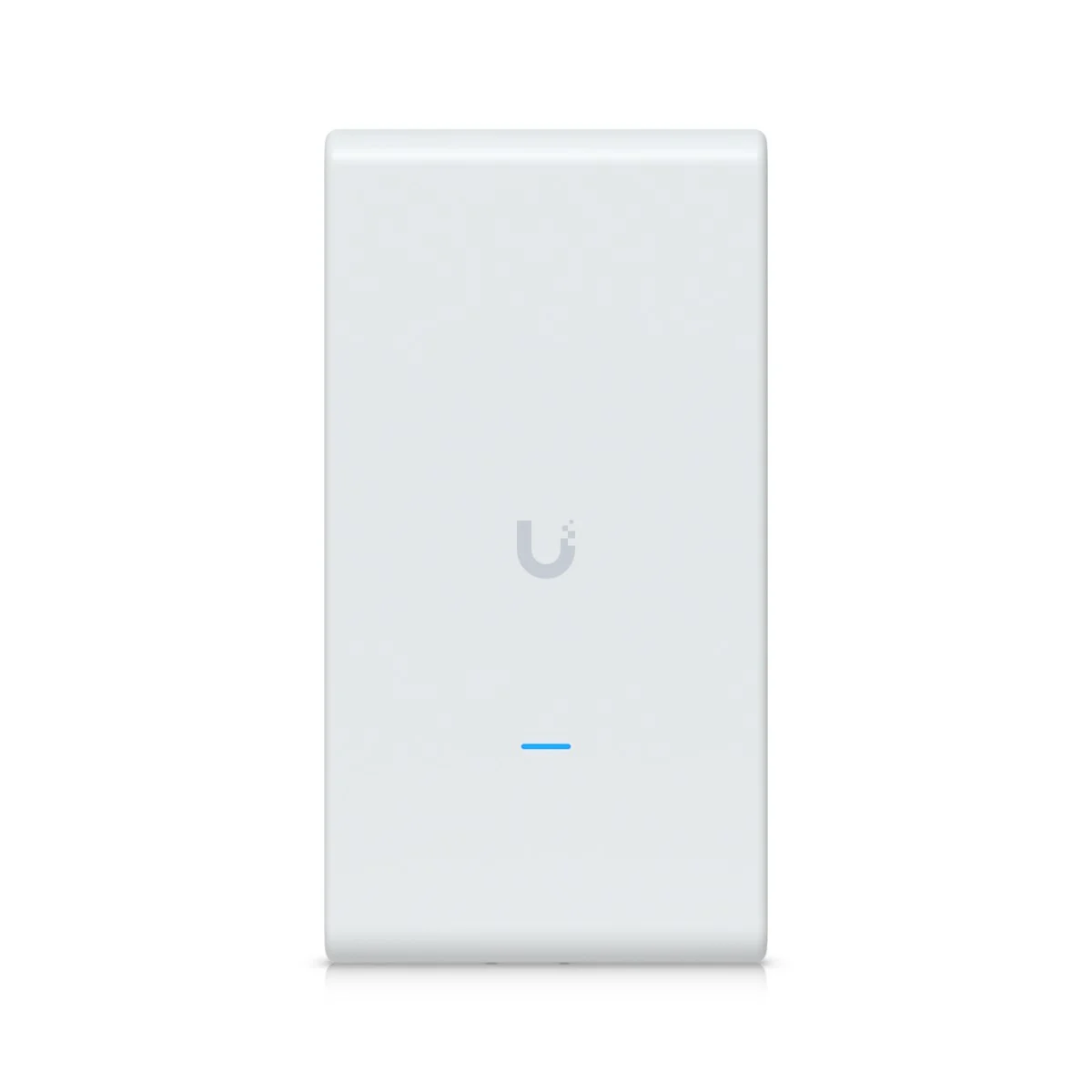
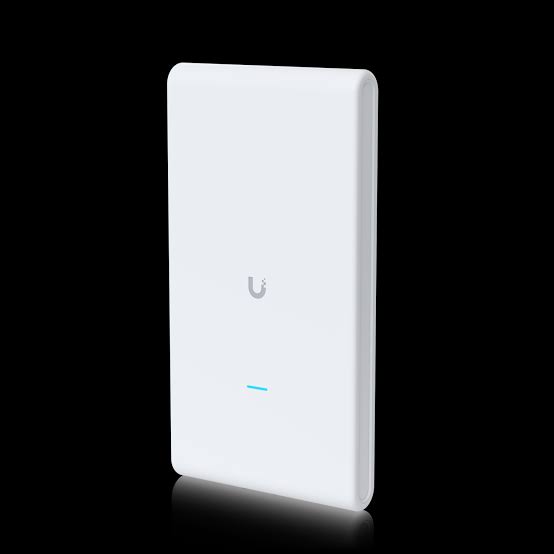
Ubiquiti UniFi Mesh PRO Access Point UAP-AC-M-PRO Price in Kenya
In stock
KES 29,000.00
KES 32,000.00
You save KES 3,000.00
Buy Ubiquiti UAP-AC-M-PRO UniFi Mesh Pro in Kenya. Explore outdoor dual-band Wi-Fi, Gigabit ports, PoE requirements and wired or mesh setup.
View product detailsNeed help choosing?
Talk to our team at +254 714 804 532
Product details
Ubiquiti UniFi AC Mesh Pro Access Point Price in Kenya
The Ubiquiti UniFi AC Mesh Pro Access Point adds shared Wi-Fi to an existing LAN. It suits users who want a separate access point in the area where phones and laptops work. The internet gateway can stay near the service feed. A cable or supported UniFi wireless uplink carries data to the access point. Match the power source and current software support before choosing the unit.
Best fit: A covered or approved outdoor area needing shared client Wi-Fi. Wi-Fi 5; 3×3 radio design; 450Mbps and 1,300Mbps advertised band rates. Weatherproofing requires correct mounting.
See the UAP-AC-M-PRO product page at Reisen to check the model when preparing your order. Ask for the exact supplied version and a full parts list. This makes it easier to compare a complete working package with a bare device.
For the same model or the nearest listed option, start with UAP-AC-M-PRO at Tawa and U6 Mesh Pro newer-generation alternative. Read the full product code on each page. Any alternative named here has its own limits and may need changes elsewhere in the system. Compare the package and the job it must do, rather than the case shape alone.

Choose the exact model, get a current quote, then agree payment and fulfillment.
Key Specifications
|
Feature |
Details |
|
Model |
UAP-AC-M-PRO |
|
Product type |
UniFi Wi-Fi access point |
|
Band |
2.4GHz and 5GHz |
|
Antenna gain |
8dBi on each band |
|
Ethernet |
2 × Gigabit Ethernet |
|
Power |
Model-approved PoE; match the supplied manual |
|
Setup |
UniFi Network; confirm current model support |
|
Package |
Confirm the exact supplied accessories before ordering |
Mesh Pro is a client Wi-Fi access point
The UAP-AC-M-PRO serves Wi-Fi devices on 2.4GHz and 5GHz. It has a 3×3 radio design, 2 Gigabit Ethernet ports, and an 8dBi antenna gain on each band. It is part of UniFi, rather than an airMAX sector system. The outdoor form needs correct mounting and cable protection. It is not a sealed underwater device. A supported mesh uplink can help where a data cable is hard to run, but power is still needed at the remote mount. Use wired backhaul when practical. Also keep UAP-AC-M-PRO separate from U6 Mesh Pro, which is a different product generation.
Compatibility

Match the delivered hardware and its manual. A similar connector is not proof of compatibility.
Wi-Fi where your users need it
The UAP-AC-M-PRO brings Wi-Fi to an Ethernet network. Put it near the rooms or outdoor area that need service. The main router can stay near the internet feed. A cable then links the 2 places. This helps avoid poor coverage caused by a router hidden in a cupboard. The access point still needs an approved power source. Before ordering, mark the main user areas and the cable route. That simple plan helps you choose the right mount and power gear.

Band rates are not additive for one client. Shared airtime and real conditions reduce useful speed.
Separate the access point from the gateway
An access point gives phones and laptops a way onto the LAN. A gateway routes traffic between that LAN and the internet. It also handles firewall rules and often gives out IP addresses. The UAP-AC-M-PRO does not replace all of those gateway jobs. Keep a suitable router upstream. If the internet stops, check that router before changing the Wi-Fi setup. Local devices may still connect to the access point even when the provider service has failed.
Understand the 2 radio bands
This model works on 2.4GHz and 5GHz. The best band depends on the client and the room. 2.4GHz can help older devices, but it often shares space with many nearby networks. 5GHz offers another band for supported clients. Walls and distance still affect both. Use a site test rather than a fixed coverage promise. The wireless rates shown for the bands are signaling limits. They are not speeds each phone can expect at the same time.
A further comparison is U7 Long-Range different access-point alternative. Keep the radio family, power method, and data interface in view. Where the linked item is a newer model or another voltage, treat it as a separate choice. It is not a blanket replacement for the UAP-AC-M-PRO.
Use a wired feed where practical
A cable from the LAN switch gives the access point a direct data path. This path is often called wired backhaul. It avoids using wireless airtime for the link back to the network. Match the switch port and cable to the Gigabit interface. Also check the power source. A Gigabit switch without PoE can carry data but cannot power the access point on its own. Add the correct injector or choose a suitable PoE switch.
Know what mesh changes
A supported wireless mesh link lets an access point reach an upstream UniFi access point without a data cable. The remote unit still needs power. It also needs a good signal from the upstream unit. Mesh traffic shares radio resources, so extra hops can reduce useful capacity. Plan the mesh before mounting the unit. Do not put it in the same dead spot it is meant to fix. Use a wired feed when the route and budget make that a good choice.
Keep UniFi setup under one owner
UniFi Network handles device setup and shared settings in supported systems. Check the current software support for this legacy model before rollout. Use the correct site and admin account when adopting it. Adoption means adding the device to that management system. A unit tied to an old site may need a planned transfer. Do not reset a working business unit just to test access. First save the settings and agree on a service window with the owner.
For a different Wi-Fi design, compare the UAP-AC-PRO and UniFi access-point range. Newer models may change radio standards and power needs. Compare them around the actual users and LAN, rather than an assumed coverage figure.
Plan staff and guest access
A guest Wi-Fi name can be useful for visitors. Its security depends on more than the name. The gateway, switch, and access point must carry the right network settings. VLANs can split traffic into separate logical networks where the system supports them. Explain which devices guests must not reach. Then test from a guest phone or laptop. Internet access alone does not prove that office printers, servers, or admin pages are blocked as intended.
Choose power from the actual model
The required power arrangement is Model-approved PoE; match the supplied manual. Check the full label and supplied manual before connecting an injector. A matching plug is not enough. Voltage, PoE method, cable wiring, and the device's power demand must fit. Package contents may differ between single units and multi-packs. Ask whether an injector is included in this order. If a switch will power several access points, add their expected loads and keep within its shared power budget.
Place it for two-way traffic
Wi-Fi needs the client to send data back to the access point. A higher-power access point cannot make every weak phone transmit farther. Test with the kinds of devices people will use. Ceiling height, metal shelves, walls, and nearby radios can all change the result. Keep the mounting choice within the model's rated use. Outdoor use also needs the right cable entry, seal, and surge plan. Avoid promising the same coverage in every building.
A MikroTik RB951Ui-2HnD combines a different router and wireless platform. The TP-Link switch range adds other local wired choices. Routing, switching, and Wi-Fi are separate jobs. Choose the parts your site needs without assuming that one box replaces every function.
Manage airtime across the site
All clients using a radio share its airtime. Busy video calls and large file transfers use more of that shared resource. Several well-placed access points may serve a site better than one unit at full power. Use a channel plan so nearby units do not compete more than needed. Test the busy areas, not just the empty hallway. Client counts and coverage figures in marketing are not a site design. Match the setup to real work and the building layout.
Test movement with real devices
A phone may stay on a distant access point longer than you expect. Clients play a part in when they roam. Shared settings and supported roaming features can help, but they do not promise a perfect call through every wall. Walk the usual routes while testing. Note where calls pause or signal quality falls. Change placement or the radio plan based on that evidence. Adding another access point without a plan can create more overlap without solving the cause.
Keep support simple after setup
Label the access point, cable, and switch port with the same location name. Record its model, power source, and software version. Save a backup of the working site settings securely. When a fault appears, check power, cable link, client addressing, and upstream service in that order. Look for a recent change before rebuilding the whole site. Clear records reduce time spent guessing. They also help the next technician keep the same network working for staff and guests.
Complete the wired side with the right cable, such as an appropriately specified Cat6 cable option. If the setup needs a separate gateway, compare the MikroTik RB5009. Check cable suitability, power, and interface speeds before approving the whole package.
Quick Brand Comparison
|
Choice |
What to compare |
|
TP-Link home or Omada Wi-Fi |
Compare the actual router or access-point role and software support. |
|
Ubiquiti UniFi |
Compare the client radio, power source, and management needs. |
|
MikroTik |
Compare routing control and wireless role on the exact model. |
|
Existing equipment |
Keep useful hardware only when its speed, power, and support fit the new plan. |
Brand names help narrow a search, but the model does the job. Start with the same product when checking a replacement. If a close alternative is needed, compare the whole connection. A different power method, radio family, or software platform can change the parts and setup needed.
Can It Be Used with Starlink?
Yes, through a suitable Ethernet LAN connection. Starlink supplies the internet feed and the gateway handles routing. The access point receives LAN data and its own approved PoE power, then serves client Wi-Fi. The Starlink generation determines whether an Ethernet accessory is needed. The access point does not power the dish or give the satellite link itself.
For the satellite side, review Starlink Kenya Installers and check the generation and handoff before ordering local network parts. Keep the satellite subscription, indoor LAN, and any remote link as clear parts of the plan. Changing the local gear does not remove provider limits such as carrier-grade NAT.
How to Set Up the UAP-AC-M-PRO
1. Map the rooms and the LAN feed
Mark the areas that need Wi-Fi and the place where the LAN cable can reach. Count expected busy devices and key apps. Keep the gateway, switch, access point, and power source in the same plan.
2. Confirm software and power
Check that the current UniFi Network release supports the exact model. Match the PoE source to the supplied manual and label. If an injector is needed, verify whether it is in the package or a separate item.
3. Connect the wired path
Connect the gateway to the LAN switch. Feed the access point through the correct PoE port or injector. Use the main input port on models with 2 Ethernet sockets. Wait for normal startup and check the link indicators.
4. Adopt into the correct site
Open the approved UniFi management system and add the access point to the right site. Set a clear location name. If it belongs to another site, follow a planned transfer or reset process after the old settings has been saved.
5. Create the Wi-Fi networks
Set a useful wireless name and strong supported security. Add staff and guest networks only as part of a complete LAN plan. Match VLANs, switch ports, DHCP, and gateway rules where separate networks are required.
6. Tune the placement and channels
Mount the unit as directed. Use a channel and power plan suited to nearby access points. Keep outdoor cable entries and seals in the correct position. Do not use maximum power as a substitute for a good location.
7. Test wired or mesh uplink
Use a cable for backhaul where practical. For a supported wireless uplink, verify a strong path to the upstream UniFi unit. Test traffic, not just adoption status. A remote mesh access point still needs its own approved power source.
8. Check the user experience
Test phones and laptops in the main rooms and on common walking routes. Check internet, printing, guest isolation, and calls as required. Save the working site settings. Label the switch port and give the owner the access and support details.
Advantages
· Separates the Wi-Fi location from the internet gateway location.
· Gives dual-band client access with a Gigabit wired path.
· Fits supported UniFi management and network settings.
· Offers a choice of wired or supported wireless uplink in a planned system.
Disadvantages and Limits
· Needs a gateway, internet feed, and approved power source.
· Legacy Wi-Fi 5 hardware may not fit a new requirement for Wi-Fi 6 or 7.
· Mesh shares radio resources and still needs local power.
· Coverage and busy-user capacity depend on the site.
Troubleshooting
Power is present but users cannot connect
Check the data path, address service, and main gateway. A lit power indicator does not prove a working LAN. Try one known-good wired path first. Then test the radio or Wi-Fi link in its intended mode. Keep a note of the first step that fails.
Service drops under load
Inspect power, cable quality, error counts, and the shared path. Test the expected busy workload. A fault that appears only during use can be hidden by a short idle check. Compare against the saved working result before changing several settings at once.
Frequently Asked Questions
Does this replace my internet router?
It adds Wi-Fi to a LAN. You still need a gateway and internet service. Keep routing, firewall, and address services on the intended gateway. A phone can join Wi-Fi even while the upstream internet is down, so association alone is not a full service test.
Does mesh mean there are no cables?
A supported wireless uplink can replace the data cable to that access point. It still needs power. It must also receive a strong upstream signal. Test the actual path and user load. Where a sound Ethernet route exists, wired backhaul is often simpler to assess and maintain.
Will all clients receive the advertised band rate?
No. Advertised rates describe radio signaling classes. Clients share airtime, and their own radios may support fewer streams or narrower channels. Walls and noise reduce useful performance. Test the users and apps that matter rather than treating a band-rate figure as each client’s download speed.
Can it join an airMAX base station?
UniFi client Wi-Fi and airMAX transport links are different systems. Choose a supported UniFi uplink or wire the access point to the LAN beyond a radio bridge. Do not buy it as an airMAX client just because both devices use 5GHz.
Is a PoE adapter always included?
Package contents depend on the exact unit and pack. Ask Reisen to check the supplied injector and cable items. Match any separate power source to the model manual. A non-PoE switch passes data but does not supply the power needed by the access point.
What should the installer test?
Check coverage in the target areas, client addresses, internet access, work apps, and guest rules. Test the chosen uplink and normal busy use. Record the mount, power source, switch port, and management site. Keep the tested setup secure and accessible to the owner.
Check the package before you book installation
Ask for a clear list of what comes with the UAP-AC-M-PRO. Match the model code, power parts, mounts, and cable items to the quote. Some accessories may be separate. Check the labels before the installer travels to site. If the order covers several places, label each set for its destination. Keep the invoice and relevant packaging. This makes it easier to resolve a missing part without guessing what the original order was meant to include.
Make the first test easy to repeat
Start with a known-good cable and a simple network path. Use one change at a time. Record the result before moving to the next step. If the full site fails but a short bench test works, focus on the route and neighboring gear. A simple test plan saves time. It also gives the owner useful proof that the supplied product, the chosen accessories, and the installed path work together.
Plan for service and future changes
Leave room to reach plugs, read labels, and replace a cable. Save settings securely where the product has software. For a passive part, keep the exact model and the test record instead. A future upgrade may change power or data needs. Recheck the full connection before reusing old accessories. Good records help a technician keep useful parts and change only the section that needs work. This can reduce avoidable cost and downtime.
Why Shop with Reisen
Reisen brings routers, wireless links, switches, access points, and cable products into one shop. This lets you build a more complete order around the job. Start with the model you need, then check the parts around it. Ask the team to check the exact package and current availability. You can also request a quote that lists setup and delivery separately. Clear stock details and a clear parts list are more useful than a vague promise.
Get a quote that covers the whole job
Send the product model, quantity, location, and main use to Reisen. Mention any existing hardware that must stay. Ask for the current price in Kenya and the terms that apply to that order. Check payment, collection or delivery, warranty, returns, and support before paying. If setup is needed, agree on the scope and the test that will show the job is complete. Keep those details with the order so both sides have the same reference.
Build the Rest of Your Network
A separate RB5009 gateway offers another way to handle routing while access points serve Wi-Fi. It is a different platform and needs a deliberate setup.
Add an 8-port Gigabit switch where the room needs more wired connections. This normal data switch does not give PoE power.
A wired access-point plan also needs suitable Ethernet cable. Check the whole route and termination parts before installing it.
If the internet feed must come from a SIM, the TL-MR6400 LTE router is a different gateway choice. Check operator bands and coverage before purchase.
Compare Ubiquiti UniFi AC Pro Access Point when its different form or role fits the job. Match the full system before treating it as a replacement.
For another product choice, open Ubiquiti UniFi AC Mesh Access Point. Its own band, power, and setup needs still apply.
Round out the shortlist with TP-Link TL-POE150S Gigabit PoE Injector. Check the exact model against your site plan and the devices that stay in service.
Browse related gear at Reisen and the full Reisen shop to prepare one parts list. Keep the UAP-AC-M-PRO code beside the quote so the supplied model stays clear.
Ready to order? Contact Reisen with your quantity and site needs. Check the current price, exact package, and agreed terms before payment. Include setup, delivery or collection, and any extra parts in the same request.
Additional information
| Product | Ubiquiti UniFi Mesh PRO Access Point UAP-AC-M-PRO Price in Kenya |
|---|---|
| Category | Ubiquiti Unifi Wireless Access Points |
| Price | KES 29,000.00 |
| Availability | In stock |
Keep exploringMore in Ubiquiti Unifi Wireless Access Points