Save 20%
Select an image to view it. Click the main image to enlarge.
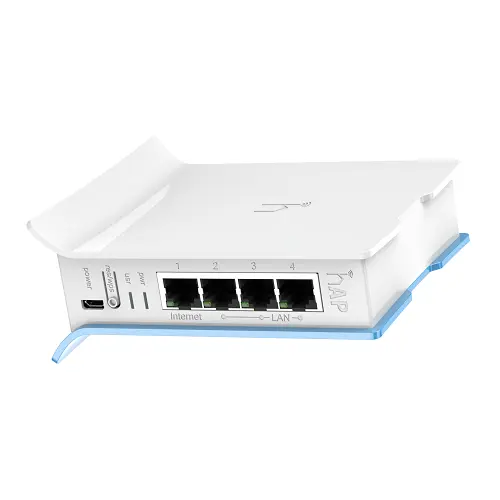
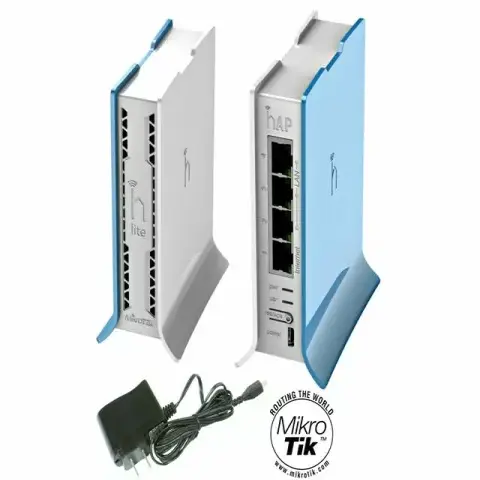
Mikrotik hAP Lite TC RB941-2nD-TC Price in Kenya
In stock
KES 4,000.00
KES 5,000.00
You save KES 1,000.00
Buy MikroTik hAP lite TC RB941-2nD-TC in Kenya at Reisen SEO. Explore a compact 2.4GHz router with four Ethernet ports for home and small-office use.
View product detailsNeed help choosing?
Talk to our team at +254 714 804 532
Product details
MikroTik hAP lite TC RB941-2nD-TC Price in Kenya
MikroTik hAP lite TC RB941-2nD-TC combines light RouterOS gateway functions with 2.4GHz Wi-Fi and 4 Fast Ethernet ports. It suits a modest indoor network where the 100Mbps wired interfaces and small hardware resources meet the real demand. Plan it as a main gateway, a supported access point, or a training device with clear settings for that chosen role.
Request a current RB941-2nD-TC quotation from Reisen. Confirm the exact model, quantity, package, taxes, warranty, and delivery terms. Include any supporting parts and installation work so the quoted price matches the complete job rather than the main item alone.

Choose the exact model, confirm the quote, then agree payment and fulfillment.
Key Specifications
|
Feature |
Details |
|
Model or range |
RB941-2nD-TC |
|
Wireless |
2.4GHz 802.11b/g/n; 2 chains; N300 class |
|
Ethernet |
4 × 10/100Mbps RJ45; not Gigabit |
|
CPU |
QCA9533 650MHz |
|
Memory |
32MB RAM; 16MB flash |
|
Software |
RouterOS Level 4; SMIPS architecture |
|
Power |
5V microUSB input; 3.5W maximum |
|
USB role |
Power input; not a USB modem/data port |
|
Case |
Indoor tower design |
|
Included supply |
Manufacturer lists 5V 1A adapter; confirm package |
The tower-case hAP lite TC
The RB941-2nD-TC is the tower-case hAP lite variant. Its upright design changes placement, not the basic performance class. It still has 4 10/100Mbps ports, a 2.4GHz N300-class radio, a 650MHz CPU, and 32MB RAM. Choose the TC shape where it fits the desk and cable route, without assuming a faster wireless tier than the desktop hAP lite. Keep the unit indoors and use the approved 5V microUSB supply. The power connector does not accept a mobile data dongle. RouterOS offers useful addressing and firewall controls for a light network, but resource limits remain. A neat setup with a documented WAN, strong credentials, clear DHCP ownership, and realistic traffic demand is more valuable than a long untested rule list on this small device.
Compatibility

Check the exact model and the full installation before connecting equipment.
Match the complete installation, including the physical connection, power, software, and intended role. Similar names or connectors do not prove compatibility.

Conceptual routed path. Addressing, firewall, hardware capacity and approved power must suit the actual network.
A practical role for a small RouterOS network
The hAP lite is a small router for light home, desk, branch, and training use. It combines a wireless access point with wired ports and RouterOS controls. That makes it useful when a simple internet box is too limited but the site does not need high traffic capacity. Choose the role first. A basic home gateway, a separate access point, and a practice lab use different settings even when they use the same hardware.
A good small network begins with a short device list. Count laptops, phones, printers, and any fixed computers. Note which ones need Ethernet and which ones can use 2.4GHz Wi-Fi. Leave room for the upstream connection. A router with 4 ports does not provide 4 spare client ports when one is already used for the internet feed. A small data switch can add local ports when the wider design supports it.
Understand the 100Mbps wired limit
Each Ethernet port supports 10/100Mbps negotiation. It is not a Gigabit port. The wired connection can therefore set a limit before the wireless radio or internet subscription reaches its advertised figure. A service sold above 100Mbps will not pass at that speed through a 100Mbps WAN port. Real usable data rates are lower after protocol overhead and the work done by the router.
This is a useful distinction when upgrading. If your main goal is faster file copies or a high-speed fiber package, start with hardware that has suitable Gigabit interfaces and enough processing power. The hAP lite remains a more modest choice for light access and learning. Buying around a real workload is more reliable than comparing the largest number printed on two boxes.
Start with hAP lite TC model listing and hAP lite TC comparison. Match the full model code, actual port rates, current software, and workload before comparing gateway features.
Read N300 as a wireless class
The 300Mbps figure describes the maximum wireless link rate under suitable conditions. It is not a promise of internet speed, speed for every client, or total application throughput. The client's radio, channel width, signal quality, and nearby networks all affect the result. Several connected clients also share wireless airtime. One slow or distant client can use more airtime to send the same amount of data.
The radio uses the 2.4GHz band. This can be useful for compatible older devices and basic indoor access. It does not provide a separate 5GHz band. A phone that supports newer Wi-Fi can connect only through a mode supported by both sides. It will not turn this router into Wi-Fi 6 or Wi-Fi 7. Match the router to the room and client devices you actually use.
Place the indoor access point with care
Put the router in a dry indoor position with ventilation. Keep it away from metal cabinets, large power equipment, and the back of a crowded television stand. The best place is often nearer the people using the network, rather than next to the outside cable entry. Check access to its power lead and Ethernet ports before settling on a location.
Walls, floors, shelves, and neighboring networks change coverage. There is no fixed room count or square-meter promise that fits every building. Walk through the intended area with a normal client and test a real task. If one room remains weak, a wired access point at a better position may work better than pushing the same small radio harder from the wrong location.
A different gateway plan may involve hAP lite desktop listing and MikroTik hEX S wired alternative. Check the required WAN handoff and whether separate client Wi-Fi is needed.
Use RouterOS to control the right things
RouterOS provides tools for addressing, DHCP, routing, firewalling, and traffic control. These features need a clear plan. A simple rule set is easier to maintain than a long collection copied from unrelated guides. Write down which port faces the provider, which ports serve trusted devices, and whether guests need a separate network. Then build only the settings needed for that job.
The license does not remove hardware limits. CPU time, RAM, and storage still matter. Heavy queues, VPN encryption, large logs, and complex rules can overwhelm a small platform. Do not treat a long software feature list as a performance guarantee. Start with a basic working setup, watch its load, and add features one at a time so the cause of a slowdown remains visible.
Keep the upstream service separate
A router needs a working internet handoff. That may come from a provider's modem, fiber terminal, or another approved Ethernet gateway. The hAP lite does not contain a fiber optical port or a cellular modem. Its microUSB connector is for power. Plugging a mobile dongle into that power input does not add mobile broadband.
Ask the provider whether its handoff uses DHCP, PPPoE, a static address, or a VLAN. Enter the exact details supplied for the account. An extra router can also create double NAT when another gateway already performs the same job. Decide whether this unit should route or operate as an access point before changing addresses. The choice should match the whole network rather than one setup screen.
For a different RouterOS capacity or port layout, review RB951Ui-2HnD wireless gateway alternative and L009 wired gateway alternative. A larger model should solve a measured limit rather than an assumed need for more hardware.
Choose a clear DHCP and addressing plan
A small LAN needs one intended source of addresses per segment. Two unplanned DHCP servers can hand out different gateways and make faults seem random. If the hAP lite is the main gateway, its LAN DHCP service must match its LAN address and subnet. If it is used only as an access point, the upstream router normally remains the address source.
Keep a reachable management address in the site records. Avoid assigning the same address to the router, printer, and another access point. A reserved address or documented static address can make later service easier. Use names that identify the branch or room without exposing private information in a public wireless name. Record changes while the network still works.
Protect access from the first login
Use the current label and guide for the initial login. Do not assume that all units use a blank password or one shared password. Set a strong unique administrator password and a separate strong wireless password. Restrict management to trusted local access where the installed configuration supports it. Do not expose management services directly to the public internet just to make remote access easy.
Before an update, check the exact model, SMIPS architecture, storage space, and supported software release. Save a backup and a readable record of the working settings. Keep passwords out of shared exports. Small flash storage needs care during upgrades. If a procedure fails, use the documented recovery process for this model rather than random firmware files from a different device.
Treat power as a real part of reliability
The unit uses a 5V microUSB power input. Use a suitable stable supply and an undamaged cable. A connector that fits is not proof that the voltage is correct. A weak supply or poor lead can cause resets that look like wireless or provider faults. Keep the power adapter supported and protect the plug from strain.
A backup power plan must suit the actual device and upstream equipment. Keeping this router on while the fiber terminal is off will not preserve internet access. List every powered part of the path. Choose a suitable UPS or approved low-voltage arrangement for the whole required path and test the behavior when normal power is lost and restored.
The LAN can be planned around RB5009 wired gateway alternative and UniFi switch for a separately managed LAN. Keep routing and data switching as separate roles and check any management platform required by the chosen switch.
Keep wired and wireless tests separate
Test the provider connection and a local wired client before judging Wi-Fi. Then test wireless near the router and at the normal desk. This helps separate an internet outage from a coverage issue. Use the same known service or local test at each step. A single phone speed result taken behind a thick wall cannot describe the whole router's performance.
Check port negotiation, cable condition, CPU load, and signal before changing many settings. If all devices lose access at once, inspect the shared supply and WAN path. If only one client struggles, start with that client's position and settings. Keep a brief fault log with times and affected devices. A clear pattern helps support staff find the cause faster.
Plan a sensible future upgrade
The hAP lite can be useful for a light duty site, but a growing network may need more memory, faster ports, newer wireless bands, or stronger routing hardware. Identify the limit you are trying to fix. Replacing a small router will not repair a damaged provider line or a poor cable. Adding a faster service will not remove a 100Mbps port limit.
A staged plan can keep useful parts in service. The unit might move into a lab or a light access role when a larger gateway takes over. Reset and secure any reused device before changing its job. Keep the old working configuration until the new network has passed its tests. This gives the owner a practical route forward without hiding the current model's limits.
The wider network can include TP-Link local data switch and Starlink Kenya Installers. A satellite internet service is an upstream source, while the local router and switch still need a suitable Ethernet handoff, configuration, and their own approved power.
Quick Brand Comparison
|
Router family |
Compare before changing platforms |
|
MikroTik hAP lite |
2.4GHz and 100Mbps ports for light work |
|
MikroTik newer wired gateways |
Ports, workload, support and separate Wi-Fi |
|
MikroTik CCR |
Exact CPU architecture, interfaces and software |
|
UniFi platform |
Different management and complete system needs |
Compare the installed role and complete package. A different model can change the support parts, management, power, or service needed. Keep the equipment that already works in the comparison and identify the specific limit the new purchase should solve.
Can It Work in a Starlink-fed Network?
It can form part of a suitable downstream Ethernet network supplied by Starlink. The Starlink hardware must provide the appropriate Ethernet handoff to the intended gateway or local network. This product does not talk directly to satellites or replace the dish. Keep its approved power separate from proprietary dish-power connections. The provider plan, gateway policy, and local equipment capacity still affect the final service.
How to Set Up RB941-2nD-TC
1. Identify the unit and service
Read the model label and current guide. Record whether this is the desktop or TC case. Ask the internet provider for the actual handoff method, including any PPPoE credentials, VLAN, or static address. Decide whether this device will be the gateway or only an access point before changing the factory configuration.
2. Connect safe local power
Use the approved 5V microUSB supply and a sound lead. Place the router indoors with ventilation. Connect a computer to an appropriate local LAN port as described in the supplied guide. Keep the provider cable disconnected until the intended WAN port and firewall arrangement are clear.
3. Secure local management
Open WinBox or WebFig using the documented local discovery or address method. Use the initial credentials or password label supplied with the unit. Set a strong unique administrator password. Save a record of the current settings before a reset or major change, especially if the router has been used before.
4. Configure the upstream link
Select the intended WAN interface and apply the provider settings. Keep it outside the trusted LAN bridge in a routed design. Retain a suitable firewall and configure NAT only where the network needs it. Do not bridge the provider port into the LAN just to make an address appear.
5. Set the LAN and wireless network
Choose a LAN subnet that does not overlap the upstream network. Configure the intended DHCP service, or leave DHCP to the existing gateway in an access point design. Set a clear wireless name, strong supported security, and the correct country. Verify guest isolation if the design needs it.
6. Test a wired client first
Confirm addressing, DNS, and internet access from one wired device. Check the negotiated port rate and remember the 100Mbps port limit. Then test a wireless client near the router and from its usual desk. Compare local access with provider access so different faults stay separate.
7. Review software and resource use
Check the supported software for this exact SMIPS device and its available storage before updating. Save a backup first. Watch CPU and memory with the intended rules and clients active. Add queues or VPN services only after verifying that the small platform can handle the extra work.
8. Save the handover record
Save the tested configuration and label the WAN and LAN connections. Record the management address, software version, supply rating, and owner of the passwords. Keep a simple recovery plan and explain the hardware limits to the people using the network. Recheck coverage after furniture or equipment moves.
Advantages
· Combines light RouterOS routing and 2.4GHz access.
· Offers 4 wired ports in a compact indoor unit.
· Supports a modest home, branch, or learning role.
· Uses a low-power 5V supply arrangement.
Disadvantages and Limits
· Ethernet ports are limited to 100Mbps.
· No 5GHz radio, LTE modem, or fiber port.
· Small RAM and flash constrain heavier configurations.
· MicroUSB is power input rather than a data host.
Troubleshooting
For slow access, separate the WAN, wired LAN, and Wi-Fi tests. Check 100Mbps port negotiation, cable quality, CPU load, and client signal. For resets, inspect the approved 5V supply and lead. For no address after an access point change, check DHCP ownership and the management subnet. Do not erase a working provider configuration before saving it.
Frequently Asked Questions
Is it a Gigabit router?
No. The hAP lite models in this range have 4 10/100Mbps Ethernet ports. A Gigabit switch added downstream does not remove a 100Mbps WAN limit. For a faster provider handoff or high-rate local file transfers, compare hardware with the required Gigabit interfaces and enough processing capacity.
Does it have 5GHz Wi-Fi?
No. The radio is 2.4GHz 802.11b/g/n. The N300 description is a maximum wireless class, not a guaranteed internet speed. A newer phone can use a supported common mode, but it cannot add a 5GHz band or Wi-Fi 6 features to this router.
Can the microUSB port accept a mobile modem?
No. It is a 5V power input, not a USB data host for a mobile dongle. Use a separate compatible Ethernet gateway if the network needs cellular internet. Check that gateway and router addressing together before adding it to an existing LAN.
Can it work only as an access point?
Yes, with an appropriate RouterOS configuration and existing upstream gateway. Plan its management address and LAN bridge, and avoid an extra unintended DHCP server. This role still has the same radio and 100Mbps port limits; an access point setting does not upgrade the hardware.
Is the TC version faster?
The TC model changes the case to a tower format. It shares the basic 2.4GHz N300 radio class, 4 Fast Ethernet ports, 650MHz CPU, and 32MB RAM of the hAP lite family described here. Choose the case for placement, not an assumed extra performance tier.
Does the router include internet service?
No. It needs a compatible provider or upstream Ethernet handoff. Obtain the account settings and service separately. Confirm whether the handoff is DHCP, PPPoE, static, or tagged before setup. The router does not include a built-in fiber terminal or mobile data subscription.
Can it run demanding VPN and traffic rules?
Supported RouterOS features still use a small CPU, RAM, and flash budget. Verify the installed software and test the intended workload. Heavy encryption or complex queues can reduce performance. Choose a stronger platform when those services are a central requirement rather than a light extra task.
What should I send for a complete quote?
Send the exact model, quantity, provider speed, current gateway, and number of wired and wireless devices. Add the location and any coverage problem. Ask Reisen to confirm the supply, stock, warranty, delivery, and configuration scope so the purchase matches the whole job.
Why Shop with Reisen
Reisen brings equipment and supporting accessories into one catalogue, which helps you plan the complete purchase. Ask the team to confirm the exact model, package, current stock, and installation scope before payment. A written bill of materials makes missing parts easier to spot. It also gives everyone a clear record of what the order should include.
Share the equipment already in use and the result the site needs. This makes questions about fit, service, power, and setup easier to answer. Confirm the current warranty, delivery, return, and technical support terms in writing. Keep those terms with the invoice rather than relying on a general statement copied from another product.
Complete the Setup with Reisen
For a separate desk calling requirement, read ZT1800G GSM Fixed Wireless Telephone. Match that product to its own service, interfaces, power, and software. It fills a different or separately verified role rather than being an automatic substitute.
For a MikroTik outdoor link format, compare MikroTik SXTsq 5 ac RBSXTsqG-5acD. Match that product to its own service, interfaces, power, and software. It fills a different or separately verified role rather than being an automatic substitute.
For a MikroTik outdoor link format, compare MikroTik BaseBox 5 RB912UAG-5HPnD-OUT. Match that product to its own service, interfaces, power, and software. It fills a different or separately verified role rather than being an automatic substitute.
For a light indoor RouterOS access role, review MikroTik hAP lite RB941-2nD. Match that product to its own service, interfaces, power, and software. It fills a different or separately verified role rather than being an automatic substitute.
For a wired gateway with a different lifecycle and capacity, examine MikroTik CCR1009-7G-1C-1S+PC Cloud Core Router. Match that product to its own service, interfaces, power, and software. It fills a different or separately verified role rather than being an automatic substitute.
For a separate airMAX AC outdoor platform, explore Ubiquiti airMAX Rocket Prism 5AC Gen2. Match that product to its own service, interfaces, power, and software. It fills a different or separately verified role rather than being an automatic substitute.
For a planned equipment enclosure, review 22U Data Cabinets Networking Racks 600mm × 1000mm. Check the device support, usable depth, cable clearance, heat load, and room access against the actual cabinet drawing.
Browse the Reisen equipment shop for supporting parts. Keep one bill of materials so the main product, accessories, installation work, and service can be checked together before the order is placed.
Contact Reisen sales and support with the exact model, quantity, delivery area, and existing equipment. Ask for the current package, stock, taxes, warranty, and support terms in writing so the final quotation is clear.
Order the Right Package
Send the full product name, model, quantity, delivery location, and target installation date. List the parts already available and ask which compatible accessories are still needed. Confirm the current quote and stock, then agree the payment and collection or delivery process. Keep the quotation and model labels together so the delivered goods can be checked against the order.
Before installation, make sure the site and supporting equipment are ready for the agreed work. Test the completed setup at handover and save its layout or settings where relevant. A useful purchase connects the selected hardware with the actual service, safe installation, and clear ownership needed to keep it working.
Additional information
| Product | Mikrotik hAP Lite TC RB941-2nD-TC Price in Kenya |
|---|---|
| Category | Mikrotik |
| Price | KES 4,000.00 |
| Availability | In stock |
Keep exploringMore in Mikrotik
Related products