Save 7%
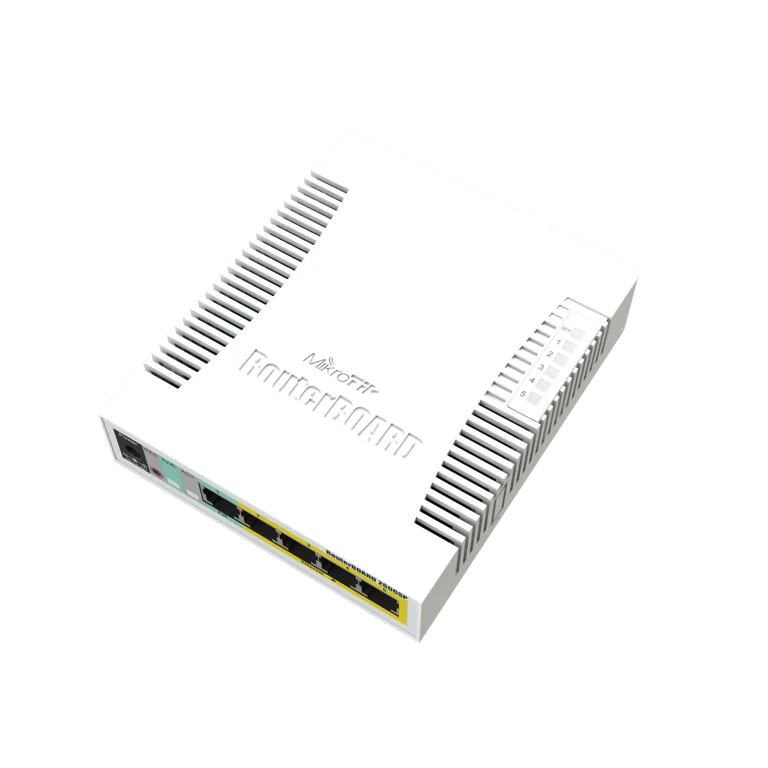
Select an image to view it. Click the main image to enlarge.
Mikrotik RB260GSP Price in Kenya
In stock
KES 7,000.00
KES 7,500.00
You save KES 500.00
Buy MikroTik RB260GSP in Kenya. Explore its Gigabit ports, SFP connectivity, passive PoE outputs, SwOS features and detailed setup guide.
View product detailsNeed help choosing?
Talk to our team at +254 714 804 532
Product details
MikroTik RB260GSP Smart Switch Price in Kenya
MikroTik RB260GSP Smart Switch is a compact indoor smart switch for a planned wired network. It combines 5 Gigabit Ethernet ports with 1 SFP cage and uses MikroTik SwOS for browser-based management. Choose it for its actual switching and power role, then keep a suitable router upstream for internet and gateway tasks.
Request the current RB260GSP quotation from Reisen. Ask for the complete package, delivery terms, taxes, warranty, and any installation work needed. A model-only price does not show the cost of the full working setup.

Choose the exact model, confirm the quote, then agree payment and fulfillment.
Key Specifications
|
Feature |
Details |
|
Model |
RB260GSP |
|
Product role |
SwOS Layer 2 smart switch |
|
Connection |
5 × Gigabit Ethernet and 1 × SFP |
|
Power |
11–30V DC; passive PoE-out on ports 2–5 |
|
Operating system |
SwOS; not RouterOS |
|
Housing |
Indoor IP20; passive cooling |
|
Fiber uplink |
1Gbps SFP; module separate |
|
PoE output |
Passive, ports 2–5 |
Gigabit switching with 4 passive power outputs
The RB260GSP, product code CSS106-1G-4P-1S, combines 5 Gigabit copper ports with 1 SFP cage. Ports 2–5 can provide passive PoE using the voltage supplied to the switch. That is useful for approved matching devices, but it is not the same as universal 802.3af/at PoE. Its 11–30V input range and output current limits need to be matched to the planned loads. MikroTik lists 1A as the low-voltage per-port limit and 2A as the maximum shared output current. Those are current limits, not a promise of a fixed 48V PoE+ budget. A suitable adapter and cable losses also affect the design. Use SwOS for switch management. This is a compact indoor switch, not a RouterOS gateway, Wi-Fi access point, or outdoor power enclosure.
Compatibility

Check the exact model and the full installation before connecting equipment.
Match every connection in the complete system. A shared connector, brand name, U height, or frequency label alone does not prove a suitable fit.

Data flow only. Passive PoE-out exists on the GSP variant and requires exact matching.
Add local connections without changing the gateway
A small smart switch gives wired devices a shared place to connect. Computers, access points, and other suitable network gear can reach the existing LAN through it. A router still handles the internet connection and the rules between networks. This switch does not supply a wireless hotspot or replace a firewall just because it has a setup page.
Count every connection before choosing the port size. The uplink to the router takes a port unless the planned fiber uplink is used. Include a service laptop and the likely next device in that count. A 5-port copper switch will not leave 5 copper sockets free after one is used for the uplink. A simple port plan avoids an unnecessary extra switch later.
Use SwOS for switching tasks
SwOS is MikroTik's switch operating system. Its browser interface is intended for tasks such as port control, VLANs, traffic viewing, and forwarding rules. It is different from RouterOS. Do not buy this model for RouterOS routing, VPN, or hotspot billing features. Those roles need suitable equipment elsewhere in the network.
The benefit of a smart switch is being able to shape the local connections when the site needs it. Use only the controls required by the plan. A simple flat network can remain simple. If the job needs separate staff and guest traffic, draw that separation before changing VLAN settings. A switch cannot decide the correct security policy on its own.
Start with RB260GSP comparison and CRS309 fiber switch alternative and compare the full power and management role. A similar port count does not make passive and standard PoE equivalent.
Read Gigabit correctly
Each copper port supports the 10/100/1000Mbps Ethernet classes. The actual link speed depends on both devices and the cable between them. A client with only a 100Mbps interface will not become Gigabit after being plugged into this switch. The internet package and router can also be slower than the local port class.
For a local transfer test, use endpoints that can sustain the required traffic. Watch the negotiated rate and error counters rather than relying on a single online speed test. A Gigabit network uses all 4 copper pairs. Poor termination or a damaged pair can leave a working connection at a lower rate. Repair that wiring before blaming the switch.
Build the SFP link as a matched pair
The SFP cage adds an optical uplink option, using a compatible module. It is a 1Gbps SFP interface, not a 10G SFP+ upgrade slot. The selected module must fit both the switch support list and the fiber route. Match wavelength, fiber type, connector, distance budget, and the far-end module.
A single-fiber BiDi pair uses complementary wavelengths. Two identical modules are not always a pair. Duplex optics need the correct transmit and receive path as well. Keep connectors clean and capped until use. Do not look into a live optical port. The SFP, patch cord, and any link parts may be separate from the switch package.
For another local port layout, review CRS310 alternative and TP-Link 5-port data switch. Decide whether simple data switching or extra managed features matter for this site.
Separate power input from power output
PoE input means that a device can receive approved power through an Ethernet connection. It does not prove that the device can power other equipment. The RB260GS and RB260GSP differ here. Read the exact label and port function before making a purchase or connecting a load.
For a PoE-out model, match the endpoint's voltage and wiring as well as current demand. Passive output is not universal 802.3af or 802.3at power. A port may pass the switch's input voltage to the endpoint. Never attach an unsupported phone, camera, or access point just because its specification uses the word PoE. A suitable supply and a complete load plan are essential.
Budget power across the whole installation
Where passive PoE-out is used, each endpoint consumes some of the available supply and current allowance. Add all planned loads, including startup behavior and cable losses. The total power adapter rating does not automatically equal usable output on every port at once. Follow the switch's per-port and shared limits.
Choose a supply that matches the switch and its intended loads. A random higher-voltage supply is not a safe way to gain power capacity. If the site needs standard PoE+ cameras or modern access points, select an appropriate standards-based switch or injector. That choice can be more useful than trying to adapt an unsuitable passive power system.
Compare TP-Link 8-port data switch and 5-port Gigabit option when the job needs more local copper connections. Check the exact uplink and endpoint count before selecting the smaller size.
Keep the physical installation tidy
This is indoor equipment. Place it in a dry area with airflow and access to the cable latches. Do not bury it under papers or wrap the power adapter in cable coils. A shelf can support it in a cabinet when a suitable rack mounting method is not supplied. Keep the power lead supported so it is not pulled from its socket.
Label the copper uplink and any fiber connection. Leave enough slack for service without large tangled bundles. Keep cables away from door edges and hot equipment. If the switch is at a remote site, note the local power source and who can reach it. That can save a long service trip when the real fault is an unplugged adapter.
Set management access before deploying it
Start on an isolated local connection where practical. Read the supplied guide for the initial address and login details. The traditional RB260-series default is 192.168.88.1, but check the label and manual for the delivered hardware. If needed, temporarily set the computer to a spare address in the same subnet.
Set a strong password before joining the production network. Choose a management address that does not clash with another device. Keep the address and credentials in the owner's secure records. Restrict management access according to the supported SwOS controls and the upstream network design. Test that the owner can still reach the switch after applying changes.
Plan VLAN membership before changing it
A VLAN can carry separate local networks across shared wiring. To make that work, the switch and connected devices need an agreed plan for tagged and untagged traffic. Decide which port belongs to which network and what the uplink must carry. Use a small written matrix before entering settings.
Keep a safe management path while making changes. An incorrect VLAN rule can lock the installer out or isolate clients from DHCP. Work in small steps and test each intended connection. A VLAN alone is not a complete firewall policy. The router or other suitable gateway must handle routing and security between networks where that communication is allowed.
A different management or power platform is available through 8-port Gigabit option and UniFi Lite 8 PoE alternative. Check its approved power method and control system before treating it as a replacement.
Avoid accidental cable loops
Adding a second cable between switches can create a loop if the network is not designed to handle it. Do not connect extra uplinks merely to gain speed. Link aggregation, loop protection, and spanning behavior depend on the exact hardware and software support. Use a documented plan rather than an assumed feature.
If a network becomes unstable after a cable change, trace the new path first. LEDs that flash heavily are not proof that useful work is being done. Keep the port schedule current and remove abandoned patch leads. Where resilience is required, design it with supported features and test a failure during a planned window.
Use monitoring to find the right fault
Port counters and link status can help narrow a problem. A single port with errors points toward its lead, endpoint, or termination. Several devices failing together may point toward the shared uplink, power source, or upstream router. Save normal readings so changes have context.
Port mirroring can assist troubleshooting when configured for a specific test. It should not be left as an unexplained permanent change. Protect any captured traffic because it may contain private data. Use bandwidth controls only with a clear purpose. A limit added for one test can later be mistaken for a faulty internet service if nobody records it.
Test local traffic and internet traffic separately
Begin with a known-good short cable and a reliable local client. Confirm the intended Ethernet speed, management access, and communication with the router. Then test another local device. This checks the switch path before the provider connection adds another variable.
If local communication works but internet access fails, check the gateway address, DNS, firewall, and provider status. If a powered endpoint restarts, check the full power budget and cable run. Do not reset all settings as the first action. A reset can remove useful evidence and create new work if the existing VLAN plan is not recorded.
For a wider installation plan, review UniFi Flex alternative and Starlink Kenya Installers. Keep the satellite internet handoff, local switching, and endpoint power needs as separate checks.
Keep recovery and expansion simple
Save the final settings or record them using the supported backup method. Note the hardware revision and firmware. Use an update intended for the exact CSS106 model and plan recovery before starting. A stable management connection and suitable power help reduce avoidable update trouble.
As the site grows, count ports, uplink traffic, and power needs again. An 8-port or 16-port switch may be a cleaner next step than several linked 5-port units. Keep useful small switches for the jobs they suit. The best upgrade solves a real limit while keeping the network understandable for its owner and the next technician.
Quick Brand Comparison
|
Switch family |
What to compare |
|
MikroTik RB260 |
SwOS, SFP and exact passive power role |
|
TP-Link unmanaged |
Simple data switching; fewer controls |
|
UniFi managed PoE |
Management platform and supported PoE method |
|
Larger MikroTik switch |
Port count, uplinks and software features |
Compare the complete role and installed cost. A different brand can require a different management platform, power source, mounting kit, or service. Keep an existing useful system in the comparison rather than replacing it solely to match a new product name.
Can It Be Used with Starlink?
Yes, a suitable Starlink Ethernet LAN handoff can feed a planned local network through the switch. Keep the gateway, DHCP, and routing design clear. The switch does not power the Starlink dish, and its local port rate does not change the satellite subscription. On the GSP, passive PoE-out is only for approved matching endpoints.
How to Set Up RB260GSP
1. Check the exact switch
Read the full RB260 model and CSS106 code. Identify which ports can receive or supply power. For the GSP, list every passive-powered load and match its voltage and wiring. Keep unapproved powered devices disconnected while setting up the switch.
2. Start with a local test
Use a suitable approved supply and a known-good short Ethernet lead. Connect one computer on a small isolated setup network where practical. Read the supplied initial-address instructions. If a temporary static computer address is needed, choose a spare address in the same subnet.
3. Open SwOS
Use a browser to reach the switch through the documented management address. The traditional RB260-series default is 192.168.88.1, but verify the delivered guide. Set a strong password and record access securely. Do not search for RouterOS menus on this SwOS device.
4. Set the management plan
Choose a unique management address and supported access restrictions. Keep the switch away from direct internet management exposure. Name the ports by destination. Verify that you can still reach the interface after applying each important change, especially when VLANs are involved.
5. Configure only needed switching features
Apply the written port and VLAN plan. Check tagged and untagged behavior on the uplink and client ports. Retain a safe management path. Avoid creating a second cable uplink unless the chosen topology and supported features are designed for it.
6. Add the fiber or powered endpoints
Fit a supported 1Gbps SFP with a matched fiber route and far-end optic if required. On the GSP, connect only approved passive-PoE endpoints within per-port and shared current limits. The GS has no PoE-out. Check each endpoint before adding the next.
7. Test the network in stages
Confirm negotiated port speeds, local device traffic, management access, and then internet access. Check errors under load. If a powered endpoint restarts, inspect the supply and cable as well as the output budget. Keep upstream router and provider faults separate from switch faults.
8. Save and label
Retain the final configuration using the supported method and record the hardware and firmware. Label uplink, power, and fiber paths. Give the owner the port schedule and recovery notes. Store spare optics or adapters only when their exact compatibility is recorded.
Advantages
· Adds 5 Gigabit copper connections and an SFP option.
· Offers browser-based SwOS management.
· Runs with passive cooling in a compact indoor body.
· Can support a planned local VLAN and port layout.
Disadvantages and Limits
· SwOS does not provide the full RouterOS gateway feature set.
· The SFP uplink is 1Gbps rather than 10G.
· PoE roles differ between GS and GSP and need exact matching.
· A small port count can limit future expansion.
Troubleshooting
For a single failing client, start with its cable and negotiated port rate. For several failing clients, inspect the shared uplink, power, and router. After a VLAN change, check membership and access to DHCP. For a restarting powered endpoint, review the approved power method and current budget before resetting everything.
Frequently Asked Questions
Is this a router?
Its main role is Layer 2 switching through SwOS. It does not provide the full RouterOS feature set used for routing, VPN, or hotspot services. Keep a suitable router upstream for those jobs. Use the switch to build the local wired and supported fiber connections around that gateway.
Does every copper port stay free for clients?
No. A copper uplink uses one of the 5 Ethernet ports. A supported SFP uplink can leave the copper ports available, but it needs a compatible module and a matched fiber path. Count the whole port plan, including management and future devices, before choosing the size.
Can I fit a 10G optic?
The cage is a 1Gbps SFP interface. An SFP+ shape or label does not create a 10G link on this switch. Choose a tested compatible 1Gbps module with the correct fiber type, connector, wavelength, and far end. The optical module is generally a separate order item.
Can it power any camera?
Only the GSP variant provides passive PoE-out, and only matching approved endpoints should use it. The GS has no PoE-out. Many cameras require 802.3af or 802.3at power instead. Match the camera voltage and power method rather than relying on a generic PoE description.
Can I use it with another brand of router?
A standard Ethernet LAN handoff can work with suitable third-party gear. The address, VLAN, and security plan still needs to match. Management features and passive power compatibility are separate questions. A shared data connection does not mean one brand's power output is right for every other device.
Will it improve a slow internet package?
It can remove a local port bottleneck when the rest of the path supports Gigabit, but it cannot raise the speed of the provider's service by itself. Test local transfers and check negotiated port rates. Then compare internet results with the actual package and router capacity.
Why did clients stop working after a VLAN change?
Review tagged and untagged membership, the uplink, and access to DHCP and the gateway. Keep a known management path while making changes. Restore the last working plan if needed. Avoid random resets that erase the port layout before the cause is understood.
What information helps with support?
Provide the full model and CSS106 code, firmware, supply label, port map, connected devices, and the exact failing test. For powered loads include voltage and current needs. For fiber include both optics and the cable type. These details make a targeted answer much easier.
Why Shop with Reisen
Reisen brings network equipment and accessories into one catalogue, so you can plan the full job around the main product. Ask the team to check the exact model, package, and stock before payment. A clear parts list can reduce missed accessories and repeat orders. Keep the quotation tied to your real site rather than a generic product name.
Technical questions are easier to resolve when the order records the equipment already in use. Share the model labels, the intended role, and the result you need. Confirm current support, delivery, return, and warranty terms in writing. This gives you a useful purchase record and a clearer basis for help after the equipment arrives.
Complete the Setup with Reisen
For an integrated directional AC link, review PBE-5AC-Gen2 Check the dish mount, clear path, and approved 24V power.
Protect the suitable outdoor Ethernet route with ETH-SP Its ground connection is part of the installation, and it does not convert PoE voltage.
For a larger reflector format, compare PBE-5AC-620 A different dish changes mounting and alignment needs rather than guaranteeing a fixed distance.
Where a compact endpoint fits the survey, look at Loco5AC Include its separate power supply in the complete quote.
If the full NanoStation format is useful, examine NS-5AC Check both Ethernet roles and the exact power guide.
For a radio with a separately selected antenna, explore R5AC-Lite Match the RF connections, antenna pattern, and supported peers.
For local data ports and a 1Gbps SFP handoff, choose a suitable setup around RB260GS This model does not power attached endpoints.
Browse the Reisen equipment shop for the rest of the planned parts. Keep a single bill of materials so the selected devices, accessories, and installation work can be checked together.
Use Reisen contact support to request the current package and stock details. Include the model, quantity, delivery area, and any existing equipment that must stay in the system.
Order the Right Package
Send the full model code and quantity with your location and target installation date. Include the parts you already own and ask which supplied accessories are still needed. Confirm the current price and stock, then agree payment and collection or delivery details. Keep the invoice, model labels, and final quote together.
Before booking installation, make sure the equipment and site are ready for the agreed work. Test the complete system at handover and save its layout or settings where relevant. A purchase is most useful when the selected product, supporting parts, and owner's needs fit the same clear plan.
Additional information
| Product | Mikrotik RB260GSP Price in Kenya |
|---|---|
| Category | Mikrotik |
| Price | KES 7,000.00 |
| Availability | In stock |
Keep exploringMore in Mikrotik
Related products