Save 6%
Select an image to view it. Click the main image to enlarge.
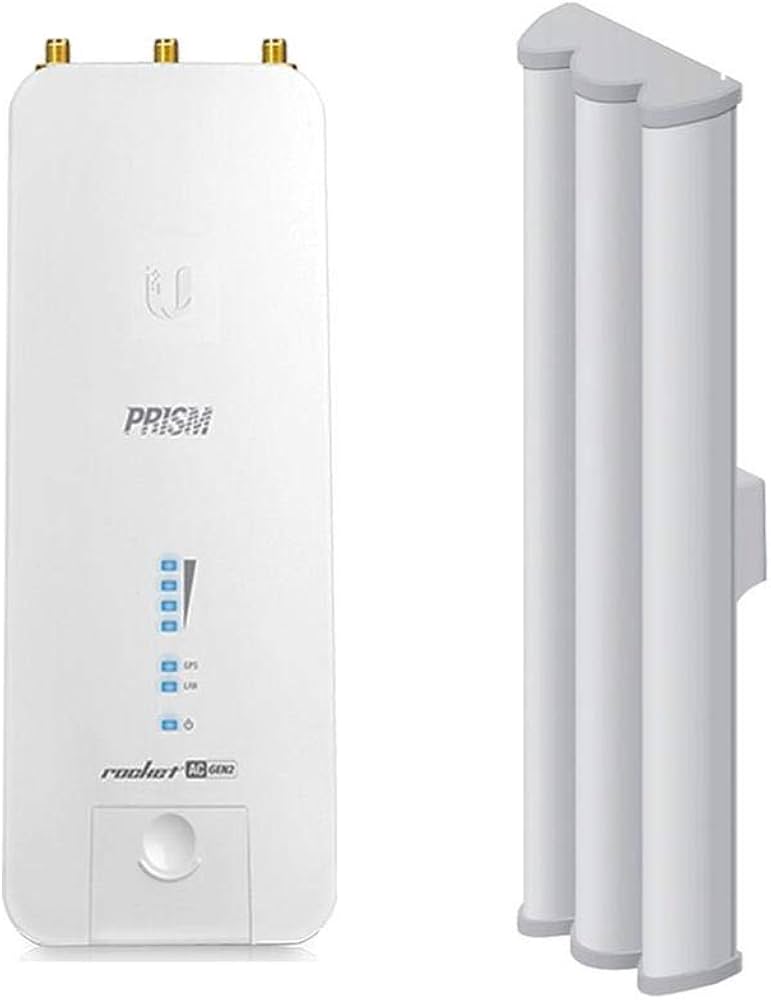
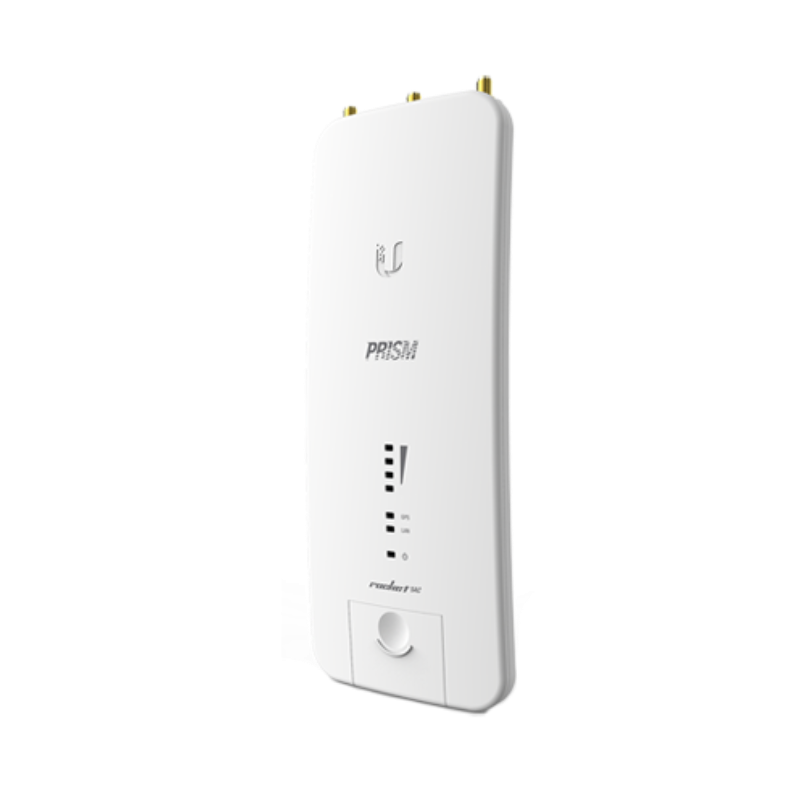
Ubiquiti airMAX Rocket Prism AC Gen2 5GHz Radio Price in Kenya
In stock
KES 31,000.00
KES 33,000.00
You save KES 2,000.00
Buy Ubiquiti Rocket Prism 5AC Gen2 in Kenya at Reisen SEO. Explore a 5GHz airMAX radio with airPrism filtering, GPS sync, and Gigabit Ethernet.
View product detailsNeed help choosing?
Talk to our team at +254 714 804 532
Product details
Ubiquiti airMAX Rocket Prism 5AC Gen2 Price in Kenya
Ubiquiti airMAX Rocket Prism 5AC Gen2 is a 5GHz airMAX AC radio for a planned outdoor point-to-point or point-to-multipoint system. It combines airPrism filtering, GPS support, and a Gigabit Ethernet handoff with a separately chosen RF antenna. Choose it around the supported peer system, coverage pattern, surveyed path, and complete installation.
Request a current RP-5AC-Gen2 quotation from Reisen. Confirm the exact model, quantity, package, taxes, warranty, and delivery terms. Include any supporting parts and installation work so the quoted price matches the complete job rather than the main item alone.

Choose the exact model, confirm the quote, then agree payment and fulfillment.
Key Specifications
|
Feature |
Details |
|
Model or range |
RP-5AC-Gen2 |
|
Wireless platform |
5GHz airMAX AC |
|
Ethernet |
1 × 10/100/1000Mbps RJ45 |
|
RF connectors |
2 × RP-SMA; separate GPS connection |
|
Antenna |
Matched external 5GHz antenna required |
|
RF filtering |
airPrism active RF filtering |
|
Synchronization |
GPS support with correctly installed GPS antenna |
|
Management |
airOS and dedicated 2.4GHz management radio |
|
Power |
24V passive PoE; verify supplied injector label |
|
Maximum consumption |
9.5W |
|
Enclosure dimensions |
88 × 40 × 230mm |
airPrism filtering and GPS in a connectorized airMAX radio
The RP-5AC-Gen2 combines a 5GHz airMAX AC radio with airPrism filtering and GPS support. The RF antenna is external and must be selected for the intended coverage pattern. GPS helps a supported synchronization design; it does not create internet service or replace channel planning. Mount the GPS antenna with the sky view required by the guide. The separate 2.4GHz management radio is for device setup and management, not a promise of general client Wi-Fi service. Use the approved 24V passive PoE source and check the exact supplied injector label. The manufacturer guide lists a Gigabit injector and GPS antenna in the package, but the seller’s actual package should still be confirmed. Its 9.5W maximum consumption is not an antenna gain or a link speed. Survey and test the complete supported airMAX installation.
Compatibility

Check the exact model and the full installation before connecting equipment.
Match the complete installation, including the physical connection, power, software, and intended role. Similar names or connectors do not prove compatibility.

Conceptual data path. Each active end needs supported radios, correct roles and approved local power.
Move a network link across open space
An outdoor radio can join 2 places when a cable route is costly or hard to build. One end connects to the existing LAN. The far end passes that link back to Ethernet for a switch, camera system, or indoor access point. Each active end still needs its own suitable power source. The radio does not create an internet subscription.
Start with the path and the service needed at the far building. Write down the traffic, the endpoint models, and how they will connect. This gives the installer a clear job. A pair serving a few office devices has different needs from a shared customer base station. Select the full system, then check the role of this particular radio inside it.
Match the radio family at both ends
The 5GHz label describes a frequency band, not a shared language between every wireless product. airMAX AC, airMAX M, UniFi, airFiber, and other radio systems have different roles and support rules. Check the exact pairing in the current firmware documentation. A familiar brand name does not remove this step.
For a new link, plan a supported pair or a supported base station and client layout. For a repair, note the model and firmware of the working far end before ordering. Keep a backup of the old settings and a rollback plan. A newer model can be a good upgrade but may require changes at both ends. Buying only one device does not always complete the repair.
Start with Rocket Prism 5AC Gen2 model listing and Rocket AC Lite radio alternative. Check the exact radio, antenna arrangement, license, and supported peer. A different wireless family may require a complete matched system.
Give the radio a clear path
A visible roof is a useful start, but it is not the whole path check. Radio energy needs clear space around the direct line as well. This zone is often called the Fresnel zone. Trees, roof edges, terrain, and future building work can reduce the usable signal. The installer should survey the actual mounting points before promising a link.
Choose a mount that can hold its aim in wind. A pole that bends may turn a good bench test into a poor outdoor link. Record the direction and height at both ends. Leave room for safe adjustment and later service. Keep the indoor power supply protected as required by its own rating. An outdoor radio does not make every part of the kit weatherproof.
Read antenna gain as one design input
Gain describes how the antenna directs energy compared with a reference. It does not promise a fixed distance or a speed. The result also depends on the far radio, noise, path clearance, channel choice, mounting height, and permitted power. A larger dish needs a suitable mount and accurate alignment to be useful.
Do not solve every weak link by raising transmit power. First check alignment, cable condition, noise, and the supported channel plan. Excess power can create other problems and must remain within local limits. A balanced link has usable readings at both ends. Compare those readings with the normal baseline rather than chasing a single large signal number.
For other MikroTik outdoor formats, compare MikroTik DISC Lite5 ac comparison and MikroTik LHG 5 ac comparison. Gain, antenna pattern, protocol, and installation clearance matter more than a shared band name.
Keep port speed separate from service speed
A Gigabit Ethernet socket describes the wired interface class. It does not guarantee a Gigabit radio link or a Gigabit internet service. Usable traffic passes through several limits: the provider, gateway, Ethernet lead, radio path, remote LAN, and client device. The lowest useful capacity in that chain can shape the experience.
Test both local and internet traffic. A local transfer across the bridge helps separate radio performance from the provider's package. Read the negotiated Ethernet rate and watch for errors. A damaged pair in a cable can lower the wired link rate while the radio still shows a strong signal. That fault should be fixed at the cable rather than hidden by changing wireless settings.
Choose channel width for the actual site
A wide channel can offer more capacity in a clean environment, but it also needs more clear spectrum. Nearby links and other users may leave less clean space. Start with a survey at both ends. Choose a lawful country setting, permitted frequency, and supported channel width that suits the path.
Keep the plan consistent across the supported radio pair. If the link serves several clients, plan shared airtime rather than assuming every client can use the entire headline capacity at once. Test during the busy period as well as at setup. A channel that looks quiet early in the day may face much more noise when nearby networks are active.
Integrated alternatives include PowerBeam AC Gen2 system alternative and NanoStation Loco5AC system alternative. These are different systems, not guaranteed drop-in peers for the radio described here. Verify both ends before mixing equipment.
Understand access point and station roles
For a simple supported pair, one radio normally serves as the access point and the other as the station. Those names describe the radio link. They do not mean that normal phones can join an airMAX base station as if it were an indoor Wi-Fi hotspot. Use a suitable local Wi-Fi access point for client coverage.
Plan which end holds each role before configuration. Give devices clear names that include their location. Keep the intended peer, security settings, channel plan, and network mode in the site record. If a base station will serve more than one client, make sure its antenna pattern and supported client types match the layout. A narrow dish and a sector serve different physical patterns.
Choose bridge or routed behavior deliberately
A bridge can carry one LAN across the radio link. In that design, the existing router may continue giving addresses to devices at the far end. A routed design creates a separate network and needs a suitable route and address plan. Either approach can work when it matches the service and is configured correctly.
Avoid adding a second DHCP service by accident. It can give devices conflicting settings and create faults that come and go. Give management interfaces unique addresses and keep a route back to them. If VLANs are used, plan the tags at the switch, radio, and remote port together. A radio with a good signal can still pass the wrong network if that plan is incomplete.
Match power before connecting the radio
Read the model label and its approved power method. A passive PoE source applies power in a different way from a standards-based PoE switch. Voltage, wiring, current capacity, and data support must all fit the radio. Do not choose a supply by plug shape alone. Keep the powered output away from ordinary laptop and switch ports.
Label the injector's LAN side and powered side. The unpowered LAN side connects toward normal network gear. The powered cable runs to the approved endpoint. Check whether the order includes the injector, mains lead, and mounting parts. A lower device price with separate accessories may have a different complete installed cost. Ask for the whole parts list before comparing quotations.
For a sector-style network, review LiteAP 120 sector alternative and LiteAP GPS sector alternative. A sector layout serves a different coverage pattern from a directional building link and needs compatible clients.
Build the outdoor cable route properly
Use cable and connectors suited to the outdoor route and the radio maker's instructions. Plan shield continuity, grounding, surge protection, strain relief, and drip loops as one installation. Do not leave a heavy cable hanging from the radio socket. Seal entries in the approved way while keeping drain and ventilation features clear.
Keep unnecessary joints out of exposed sections. Water can follow a cable into a connector or building entry. A route that looks neat in dry weather may fail during the first rains if it has unprotected joins. Record the full cable length and test it before the radio goes high on the pole. Replacing a poor lead on the bench is much easier than doing it after mounting.
Secure the settings and management access
Set a unique admin password and strong supported wireless security. Change default identifiers that would make the link easy to confuse with another site. Keep management access on a trusted network. Remote access should follow a planned secure method rather than exposing the setup interface directly to the internet.
Use firmware intended for the exact hardware and region. Back up settings before major changes. Schedule updates so the owner knows about any outage. Where a separate setup radio is fitted, treat it as a management tool rather than promised client Wi-Fi. Keep passwords out of public labels and shared invoices. The owner should have an agreed way to recover access later.
Align with measurements at both ends
Begin with the planned direction and then adjust in small steps. Read signal quality, chain balance, errors, and real traffic. Wait for readings to settle after each movement. Tighten the mount only after the final position is clear, then check again. Tightening can slightly move the assembly and change the result.
A stronger reading alone may not mean a better link. Noise and errors can make a strong connection unreliable. Save the final readings, channel settings, and mount photographs in the service record. A later technician can compare them with current conditions. That is far more useful than a note saying that the link worked on installation day.
The complete installation can also involve managed switches for the local LAN and Starlink Kenya Installers. Keep the upstream internet service, local switch, outdoor radio transport, and endpoint power as separate parts of one supported network.
Test the services people will use
Run traffic in both directions. Test browsing, calls, camera viewing, file transfers, or other real tasks expected at the far site. Watch for errors, restarts, delay, and dropped packets while the link is busy. Include the remote switch and access point in the test so the service is checked from end to end.
If only internet access fails, check the provider and gateway before rebuilding the radio configuration. If all local traffic fails as well, inspect the wired path, power, and addressing. Change one cause at a time and write down the result. A short repeatable test often finds the fault faster than several unrelated changes made together.
Keep a useful service record
Record the full model codes, serial numbers, firmware, addresses, power supplies, and cable routes. Mark which port is powered and who owns the management account. Save a tested backup in an agreed secure place. The record should explain what the owner can check first without disturbing the installation.
Before replacing a radio, read the far-end model again. Do not assume it is unchanged since the first order. Building work, tree growth, new local interference, or an aging cable may explain a fault. A new radio cannot repair every one of those causes. Match the replacement to the evidence and test the complete service after any change.
Quick Brand Comparison
|
Outdoor system |
Main distinction |
|
MikroTik SXTsq 5 ac |
Integrated ac CPE; Level 3 station role |
|
MikroTik BaseBox 5 |
External antenna; a/n radio; Level 4 |
|
Ubiquiti Rocket Prism 5AC Gen2 |
airMAX AC, external antenna, airPrism and GPS |
|
Integrated airMAX AC radio |
Fixed antenna pattern and supported airMAX peers |
Compare the installed role and complete package. A different model can change the support parts, management, power, or service needed. Keep the equipment that already works in the comparison and identify the specific limit the new purchase should solve.
Can It Work in a Starlink-fed Network?
It can form part of a suitable downstream Ethernet network supplied by Starlink. The Starlink hardware must provide the appropriate Ethernet handoff to the intended gateway or local network. This product does not talk directly to satellites or replace the dish. Keep its approved power separate from proprietary dish-power connections. The provider plan, gateway policy, and local equipment capacity still affect the final service.
How to Set Up RP-5AC-Gen2
1. Survey both ends
Record the planned mounting points, line of sight, path clearance, local noise, and service needed at the far end. Identify the exact remote radio. Check that the proposed airMAX AC pairing and firmware are supported. Keep a safe wired test path available before starting.
2. Prepare the complete parts set
Check the model label, mount, approved injector, outdoor cable, connectors, grounding parts, and surge protection. For the Rocket, add the matched antenna and RF connection parts. Do a bench test first using known-good short leads so a cable fault is not carried up the mast.
3. Connect power and the setup client
Connect the injector LAN side toward the computer or normal network. Connect its powered side only to the radio's approved input. Follow the supplied guide for the initial wired or management-radio access method. Use the actual label credentials and avoid assuming every generation has the same default.
4. Secure and name the devices
Set a unique admin password and supported wireless security. Enter the correct country and lawful radio settings. Give each end a useful location name and management address. Save a record before changing network modes. Keep setup access on a trusted local path.
5. Set the radio roles
Choose supported access-point and station roles for the link. Match the intended network name, security, channel plan, and supported width. For a shared base station, configure the approved clients and antenna layout. Do not treat the radio as a normal phone hotspot. Install the GPS antenna with the required sky view. Configure synchronization only as part of a supported coordinated radio plan and verify its status. GPS lock does not replace a traffic test.
6. Apply the LAN plan
Choose bridge or routed operation deliberately. Keep management addresses unique and avoid a second unintended DHCP server. Match VLAN tags across the switch, radio, and far-end device if they are used. Check that a test client can reach the correct gateway through the link.
7. Mount and align
Use the surveyed supports and the maker's mounting instructions. Keep cable weight off the sockets and complete the grounding and protection plan. Adjust aim in small steps while reading both ends. Tighten the mount, then recheck signal quality, chain balance, and useful traffic.
8. Test the real service
Test local traffic and then internet service in both directions. Try the calls, camera feeds, or office tasks the owner expects. Record Ethernet rate, errors, radio readings, firmware, and final settings. Save a backup and explain the first checks to make if the service later fails.
Advantages
· Offers airPrism filtering in a supported airMAX AC network.
· Supports a planned GPS synchronization arrangement.
· Allows a matched external antenna for the coverage pattern.
· Includes a Gigabit Ethernet interface.
Disadvantages and Limits
· External RF antenna is a separate selection.
· GPS and filtering do not remove path or interference limits.
· Not a UniFi room access point or a mobile modem.
· Needs approved passive power and a complete outdoor installation.
Troubleshooting
Check registration, antenna connections, alignment, power, and Ethernet negotiation separately. Compare signal and errors with the recorded baseline. GPS status does not prove user traffic is healthy. Inspect the supported synchronization settings only as part of the planned system. If local traffic passes but internet fails, test the upstream gateway and provider before rebuilding the radio link.
Frequently Asked Questions
Can 1 unit join 2 buildings?
A normal point-to-point link needs active radios at both ends. One new unit can be enough when the far building already has a supported working endpoint or base station. Confirm that exact model and firmware first. Each active end also needs suitable local power and cable connections.
Will normal phones join this as Wi-Fi?
Do not buy an airMAX radio as a normal room hotspot. Its main job is a supported outdoor radio link. A separate management radio, when fitted, is for setup. Add a suitable indoor or outdoor client Wi-Fi access point where people need phone and laptop coverage.
Does higher gain guarantee a longer link?
No. Gain is one input to the path design. Clearance, noise, the far-end radio, mounting, permitted power, and the chosen channel also matter. Ask for a surveyed path and a realistic link budget. A distance promise made from the antenna number alone is not a reliable buying basis.
Does Gigabit mean Gigabit internet?
No. Gigabit describes the Ethernet port class. The radio path, gateway, provider package, and client device can have lower usable capacity. Test a local transfer and the internet separately. This helps show whether a limit comes from the wireless bridge or another part of the service.
Can it use any PoE switch?
No. Check the exact model's approved voltage, wiring, and power method. Passive PoE and standards-based PoE are not interchangeable by default. Use a matched supply or an explicitly supported switch output. A connector that fits does not prove that the electrical arrangement is correct.
Can I replace an M-series radio with this?
Only after checking the supported pairing and operating mode. An airMAX AC device is not automatically a drop-in replacement for every M-series endpoint. You may need to change both ends or the base station plan. Retain the working settings and test the supported combination before site deployment.
Why does the link fail when it rains or gets windy?
Inspect mounting movement, water entry, connector condition, and the full power path. Tree movement and path blockage can also affect a marginal link. Compare current readings with the saved baseline. Do not assume a new radio is the answer before those common installation causes have been checked.
What should I send with a quotation request?
Provide the full model, site distance, clear-path information, far-end model, intended traffic, and needed accessories. Include outdoor cable, mounts, power supplies, protection, and remote LAN gear in the plan. This helps Reisen quote a complete working parts set rather than one isolated radio.
Why Shop with Reisen
Reisen brings equipment and supporting accessories into one catalogue, which helps you plan the complete purchase. Ask the team to confirm the exact model, package, current stock, and installation scope before payment. A written bill of materials makes missing parts easier to spot. It also gives everyone a clear record of what the order should include.
Share the equipment already in use and the result the site needs. This makes questions about fit, service, power, and setup easier to answer. Confirm the current warranty, delivery, return, and technical support terms in writing. Keep those terms with the invoice rather than relying on a general statement copied from another product.
Complete the Setup with Reisen
For a separate desk calling requirement, read ZT1800G GSM Fixed Wireless Telephone. Match that product to its own service, interfaces, power, and software. It fills a different or separately verified role rather than being an automatic substitute.
For a MikroTik outdoor link format, compare MikroTik SXTsq 5 ac RBSXTsqG-5acD. Match that product to its own service, interfaces, power, and software. It fills a different or separately verified role rather than being an automatic substitute.
For a MikroTik outdoor link format, compare MikroTik BaseBox 5 RB912UAG-5HPnD-OUT. Match that product to its own service, interfaces, power, and software. It fills a different or separately verified role rather than being an automatic substitute.
For a light indoor RouterOS access role, review MikroTik hAP lite RB941-2nD. Match that product to its own service, interfaces, power, and software. It fills a different or separately verified role rather than being an automatic substitute.
For a light indoor RouterOS access role, review MikroTik hAP lite TC RB941-2nD-TC. Match that product to its own service, interfaces, power, and software. It fills a different or separately verified role rather than being an automatic substitute.
For a wired gateway with a different lifecycle and capacity, examine MikroTik CCR1009-7G-1C-1S+PC Cloud Core Router. Match that product to its own service, interfaces, power, and software. It fills a different or separately verified role rather than being an automatic substitute.
For a planned equipment enclosure, review 22U Data Cabinets Networking Racks 600mm × 1000mm. Check the device support, usable depth, cable clearance, heat load, and room access against the actual cabinet drawing.
Browse the Reisen equipment shop for supporting parts. Keep one bill of materials so the main product, accessories, installation work, and service can be checked together before the order is placed.
Contact Reisen sales and support with the exact model, quantity, delivery area, and existing equipment. Ask for the current package, stock, taxes, warranty, and support terms in writing so the final quotation is clear.
Order the Right Package
Send the full product name, model, quantity, delivery location, and target installation date. List the parts already available and ask which compatible accessories are still needed. Confirm the current quote and stock, then agree the payment and collection or delivery process. Keep the quotation and model labels together so the delivered goods can be checked against the order.
Before installation, make sure the site and supporting equipment are ready for the agreed work. Test the completed setup at handover and save its layout or settings where relevant. A useful purchase connects the selected hardware with the actual service, safe installation, and clear ownership needed to keep it working.
Additional information
| Product | Ubiquiti airMAX Rocket Prism AC Gen2 5GHz Radio Price in Kenya |
|---|---|
| Category | Networking Tools & Accessories |
| Price | KES 31,000.00 |
| Availability | In stock |
Keep exploringMore in Networking Tools & Accessories
Related products