Save 20%

Select an image to view it. Click the main image to enlarge.
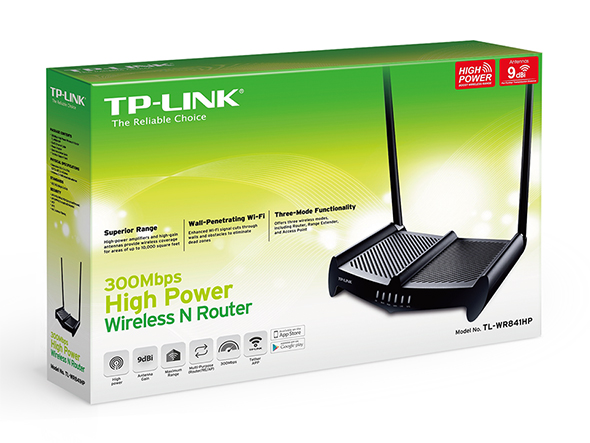
TP-Link Wireless Router TL-WR841HP High Power Price in Kenya
In stock
KES 4,500.00
KES 5,600.00
You save KES 1,100.00
Buy TP-Link TL-WR841HP High Power Router in Kenya. Explore 300Mbps Wi-Fi, specifications, setup instructions, benefits and current price enquiries.
View product detailsNeed help choosing?
Talk to our team at +254 714 804 532
Product details
TP-Link TL-WR841HP High Power Wireless Router Price in Kenya
The TP-Link TL-WR841HP High Power Wireless Router shares a wired internet feed with local Wi-Fi and Ethernet devices. It can fit a home office or small site whose workload suits its 2.4GHz radio and Fast Ethernet ports. The high-power design helps shape the wireless connection, while the room layout and client devices still affect the result. Check the supplied hardware version before planning its modes or antenna details.
Best fit: A home office with a wired internet feed and modest Wi-Fi needs. Router, access-point, and range-extender modes depend on hardware and firmware.
See the TL-WR841HP product page at Reisen to check the model when preparing your order. Ask for the exact supplied version and a full parts list. This makes it easier to compare a complete working package with a bare device.
For the same model or the nearest listed option, start with TL-WR841HP at Tawa and Archer C86 dual-band router alternative. Read the full product code on each page. Any alternative named here has its own limits and may need changes elsewhere in the system. Compare the package and the job it must do, rather than the case shape alone.

Choose the exact model, get a current quote, then agree payment and fulfillment.
Key Specifications
|
Feature |
Details |
|
Model |
TL-WR841HP |
|
Product type |
Indoor Wi-Fi router |
|
Band |
2.4GHz N300 |
|
Antenna gain |
2 external antennas; gain varies by revision |
|
Ethernet |
1 × 10/100Mbps WAN; 4 × 10/100Mbps LAN |
|
Power |
Matched DC adapter |
|
Setup |
Web setup; confirm hardware version |
|
Package |
Confirm the exact supplied accessories before ordering |
A high-power router with Fast Ethernet ports
The TL-WR841HP is best judged by its full connection path. Its 2.4GHz radio can serve supported everyday devices. The 4 LAN ports give a small desk area useful wired options. Yet the 100Mbps WAN port is a real limit for a faster internet plan. Bigger antennas do not change that port. Hardware versions also differ in antenna gain and available modes. Ask for the supplied version before choosing it for a new site. For an existing setup, keep the current settings until the replacement has been tested. This makes it easier to restore service if the provider handoff or saved client settings differ.
Compatibility

Match the delivered hardware and its manual. A similar connector is not proof of compatibility.
A simple gateway for a wired internet feed
The TL-WR841HP shares an Ethernet internet connection with local devices. Its WAN port faces the provider gear. Its LAN ports serve your wired devices. The Wi-Fi radio connects supported phones and computers. This can suit a modest home or small office network. You still need an active internet service and the correct handoff. The router does not contain a mobile modem or SIM slot. Decide how the service reaches the building before choosing this model.

Different interfaces, not additive. A high-power antenna does not change the Fast Ethernet ports.
What high power means in practice
The high-power design uses external antennas and amplifiers to help the radio link. It does not remove walls or make all client devices transmit farther. Wi-Fi is a two-way exchange. A phone with a weak return path can still struggle. Place the router where the signal has a useful path to users. Test the rooms you need to serve. Do not set a whole-building coverage promise from the antenna size or a headline range claim.
Understand the N300 speed label
N300 refers to the maximum advertised 2.4GHz wireless signaling class. It is not a promise of 300Mbps internet service. The WAN and LAN sockets are Fast Ethernet. That places a separate limit on traffic through them. Nearby Wi-Fi, walls, and shared airtime can reduce useful speed further. If your main aim is a faster modern broadband connection, compare a dual-band router with Gigabit ports. Buy this model when its actual limits fit the planned workload.
A further comparison is UniFi wireless access-point alternative. Keep the radio family, power method, and data interface in view. Where the linked item is a newer model or another voltage, treat it as a separate choice. It is not a blanket replacement for the TL-WR841HP.
Choose the right operating mode
Router mode handles a separate WAN connection and a local LAN. Access-point mode extends an existing wired LAN with Wi-Fi. Range-extender mode uses a wireless upstream connection where the revision supports it. These roles have different setup rules. Check the exact hardware and firmware before planning a special mode. Avoid running an extra DHCP service by mistake when the main router already handles addresses. Keep a note of the chosen mode so later support starts from the right assumptions.
Set up the internet details first
Your provider may use DHCP, PPPoE, or a static address. DHCP gives the WAN its details automatically. PPPoE needs the provider's login details. A static service needs the given address, gateway, and DNS settings. Ask the provider which method applies. Do not copy another customer's settings. Keep the WAN cable separate from the local LAN until the role is clear. A correct local Wi-Fi password does not fix an incorrect internet connection type.
Place it where the radio can work
Avoid a floor corner, metal cupboard, or spot behind a large screen. A central open location may give a better result. Test that position with a phone before fixing cables in place. Keep the router and adapter dry and clear of excess heat. If the internet handoff is far from the best Wi-Fi position, a separate wired access point can help. This lets the gateway stay near the service entry while Wi-Fi reaches the room that needs it.
For a different Wi-Fi design, compare the UAP-AC-PRO and UniFi access-point range. Newer models may change radio standards and power needs. Compare them around the actual users and LAN, rather than an assumed coverage figure.
Secure the admin account and Wi-Fi
Use a unique admin password for the settings page. Set a separate strong Wi-Fi password for clients. Choose the strongest supported security mode that suits the intended devices. Keep remote management off unless it is needed and secured. Old saved Wi-Fi profiles may need to be updated after a password change. Write down the LAN address and recovery details for the owner. Do not leave account details on a public notice board or in a shared customer document.
Keep local addresses easy to manage
The LAN uses a private address range. Its DHCP service gives each normal client an address, a gateway, and DNS details. Avoid a range that clashes with an upstream router or a remote site. Printers with fixed addresses need to remain within the approved plan. If you change the LAN address, the settings page will move too. Reconnect using the new address. A short address record can prevent a needless factory reset during a later support call.
Add wired devices with a clear plan
The 4 LAN ports can serve nearby computers, a printer, or another switch. A connected switch adds local sockets but does not change the router's port speed. Count the cable to that switch as one shared path. Large local file transfers may justify a faster network design. Use good Ethernet leads and check the negotiated speed. If several devices fail at once, inspect the shared switch uplink and the router before changing each computer.
A MikroTik RB951Ui-2HnD combines a different router and wireless platform. The TP-Link switch range adds other local wired choices. Routing, switching, and Wi-Fi are separate jobs. Choose the parts your site needs without assuming that one box replaces every function.
Extend coverage without a chain of guesses
A weak room may be better served by a cable and access point than by several repeaters. A repeater must receive a good upstream signal before it can help. Put it in a useful middle position, not deep inside the dead area. Each wireless hop uses airtime. Test the whole path with the normal client device. For a larger building, map access-point positions and channels. Adding more radios at random can add noise without giving a better user experience.
Check software and hardware version
TP-Link has sold several hardware versions of this model. Antenna details, supported modes, and software can differ. Read the label before downloading firmware. Use the package meant for the correct version and region. Back up the working setup before an update. Keep power stable and allow for a service break. For a new business network, check the current support status as part of the purchase. A familiar model name does not tell you how long a given version will receive updates.
Test the full user path
Start with a wired client to check the provider feed and router settings. Then test Wi-Fi near the router and in the rooms that matter. Verify browsing, calls, printing, and any key work app. If only one room is weak, focus on the radio path. If both wired and wireless users fail, inspect the WAN and upstream service first. Save the working settings and note cable roles. A simple handover helps keep later changes small and easy to reverse.
Complete the wired side with the right cable, such as an appropriately specified Cat6 cable option. If the setup needs a separate gateway, compare the MikroTik RB5009. Check cable suitability, power, and interface speeds before approving the whole package.
Quick Brand Comparison
|
Choice |
What to compare |
|
TP-Link home or Omada Wi-Fi |
Compare the actual router or access-point role and software support. |
|
Ubiquiti UniFi |
Compare the client radio, power source, and management needs. |
|
MikroTik |
Compare routing control and wireless role on the exact model. |
|
Existing equipment |
Keep useful hardware only when its speed, power, and support fit the new plan. |
Brand names help narrow a search, but the model does the job. Start with the same product when checking a replacement. If a close alternative is needed, compare the whole connection. A different power method, radio family, or software platform can change the parts and setup needed.
Can It Be Used with Starlink?
Yes, when the Starlink system gives a suitable Ethernet connection. Check the hardware generation and any needed Ethernet accessory. Decide whether the upstream router stays active or uses a supported bypass arrangement. Two routers in sequence can create double NAT. The TL-WR841HP does not power the dish, and its Fast Ethernet WAN remains a limit on faster service.
For the satellite side, review Starlink Kenya Installers and check the generation and handoff before ordering local network parts. Keep the satellite subscription, indoor LAN, and any remote link as clear parts of the plan. Changing the local gear does not remove provider limits such as carrier-grade NAT.
How to Set Up the TL-WR841HP
1. Get the provider details
Ask whether the Ethernet service uses DHCP, PPPoE, or a static address. Note any special handoff needs. Save the old router settings if replacing it. Keep the provider device and a wired test computer ready.
2. Read the hardware label
Check the TL-WR841HP revision and the supplied adapter. Use the matching manual and firmware. Antennas, modes, and setup screens can vary between versions, so avoid using an unrelated guide just because the case looks similar.
3. Make the first wired connection
Power the router with its approved adapter. Connect the computer to a LAN port. Use the management address or hostname in the supplied guide. Keep a record of any address change so you can return to the settings page.
4. Secure administrator access
Create a unique admin password. Give the router a useful name where the interface allows it. Avoid exposing management to the internet. Save the current setup before making advanced changes.
5. Connect the WAN service
Attach the provider Ethernet feed to the WAN port. Select the correct connection type and enter the provider details if needed. Check the WAN status before changing wireless settings to solve an unrelated service problem.
6. Set the LAN and Wi-Fi
Choose a LAN range that fits the site. Enable the intended DHCP service in router mode. Set the wireless name and strongest supported security that fits the clients. Use a separate, strong Wi-Fi password.
7. Place and test the router
Try a useful open indoor location. Test wired internet first, then wireless use near the router and in the target rooms. Check printing and work apps too. The N300 label is not a speed-test target.
8. Save and hand over
Back up the tested settings. Record WAN and LAN cable roles, hardware version, and support details. Keep passwords secure. Explain any Fast Ethernet or 2.4GHz limits that matter to the customer’s planned service.
Advantages
· Combines local wired connections and 2.4GHz Wi-Fi in one unit.
· External antennas and a high-power design support a planned coverage role.
· Can fit a modest home or office workload.
· Supported extra modes may extend its use on the right hardware version.
Disadvantages and Limits
· Fast Ethernet ports limit faster wired internet and LAN transfers.
· Single-band 2.4GHz Wi-Fi does not serve a 5GHz-only requirement.
· High power cannot remove every wall, noise source, or client limit.
· Hardware revision affects features and software support.
Troubleshooting
Power is present but users cannot connect
Check the data path, address service, and main gateway. A lit power indicator does not prove a working LAN. Try one known-good wired path first. Then test the radio or Wi-Fi link in its intended mode. Keep a note of the first step that fails.
Service drops under load
Inspect power, cable quality, error counts, and the shared path. Test the expected busy workload. A fault that appears only during use can be hidden by a short idle check. Compare against the saved working result before changing several settings at once.
Frequently Asked Questions
Does the TL-WR841HP have a SIM slot?
No. It uses an Ethernet internet handoff. A mobile service needs separate suitable modem or gateway gear. Do not buy this router as an integrated 4G unit. Ask the provider how it presents the internet connection before planning the WAN cable.
Will it deliver 300Mbps through the WAN?
The N300 figure describes the wireless signaling class. The WAN port is 10/100Mbps, so it is a separate wired limit. Real user speeds are lower than headline interface figures. Choose a suitable Gigabit router when a faster wired broadband plan is a core requirement.
Can it act as an access point?
Supported modes depend on the hardware and firmware. Check the supplied version. In access-point mode, the main gateway normally keeps the routing and DHCP jobs. Connect and test the LAN plan carefully so the second unit does not create an unwanted address server.
Do larger antennas guarantee every room is covered?
No. The building, nearby radios, placement, and client transmit power all matter. Test the required rooms with the actual phones or computers. A wired access point may help a distant room more than moving the gateway or adding an unplanned chain of repeaters.
Why does Wi-Fi connect without internet?
Check the WAN status and provider service. Verify the connection type and any required login or address settings. Try a wired client as well. If both wired and Wi-Fi access fail, the cause may sit upstream rather than in the local wireless password or channel.
What should I confirm before ordering?
Ask for the hardware revision, adapter, supported modes, current software support, and package contents. Explain the internet speed and rooms to be served. Include any switch or cable work in the quote. This helps match the router to a defined, realistic job.
Check the package before you book installation
Ask for a clear list of what comes with the TL-WR841HP. Match the model code, power parts, mounts, and cable items to the quote. Some accessories may be separate. Check the labels before the installer travels to site. If the order covers several places, label each set for its destination. Keep the invoice and relevant packaging. This makes it easier to resolve a missing part without guessing what the original order was meant to include.
Make the first test easy to repeat
Start with a known-good cable and a simple network path. Use one change at a time. Record the result before moving to the next step. If the full site fails but a short bench test works, focus on the route and neighboring gear. A simple test plan saves time. It also gives the owner useful proof that the supplied product, the chosen accessories, and the installed path work together.
Plan for service and future changes
Leave room to reach plugs, read labels, and replace a cable. Save settings securely where the product has software. For a passive part, keep the exact model and the test record instead. A future upgrade may change power or data needs. Recheck the full connection before reusing old accessories. Good records help a technician keep useful parts and change only the section that needs work. This can reduce avoidable cost and downtime.
Why Shop with Reisen
Reisen brings routers, wireless links, switches, access points, and cable products into one shop. This lets you build a more complete order around the job. Start with the model you need, then check the parts around it. Ask the team to check the exact package and current availability. You can also request a quote that lists setup and delivery separately. Clear stock details and a clear parts list are more useful than a vague promise.
Get a quote that covers the whole job
Send the product model, quantity, location, and main use to Reisen. Mention any existing hardware that must stay. Ask for the current price in Kenya and the terms that apply to that order. Check payment, collection or delivery, warranty, returns, and support before paying. If setup is needed, agree on the scope and the test that will show the job is complete. Keep those details with the order so both sides have the same reference.
Build the Rest of Your Network
A separate RB5009 gateway offers another way to handle routing while access points serve Wi-Fi. It is a different platform and needs a deliberate setup.
Add an 8-port Gigabit switch where the room needs more wired connections. This normal data switch does not give PoE power.
A wired access-point plan also needs suitable Ethernet cable. Check the whole route and termination parts before installing it.
If the internet feed must come from a SIM, the TL-MR6400 LTE router is a different gateway choice. Check operator bands and coverage before purchase.
Compare Ubiquiti UniFi AC Pro Access Point when its different form or role fits the job. Match the full system before treating it as a replacement.
For another product choice, open Ubiquiti UniFi AC Mesh Access Point. Its own band, power, and setup needs still apply.
Round out the shortlist with TP-Link TL-POE150S Gigabit PoE Injector. Check the exact model against your site plan and the devices that stay in service.
Browse related gear at Reisen and the full Reisen shop to prepare one parts list. Keep the TL-WR841HP code beside the quote so the supplied model stays clear.
Ready to order? Contact Reisen with your quantity and site needs. Check the current price, exact package, and agreed terms before payment. Include setup, delivery or collection, and any extra parts in the same request.
Additional information
| Product | TP-Link Wireless Router TL-WR841HP High Power Price in Kenya |
|---|---|
| Category | Tp-link |
| Price | KES 4,500.00 |
| Availability | In stock |
Keep exploringMore in Tp-link