Save 4%
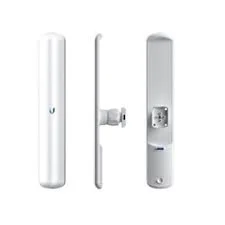
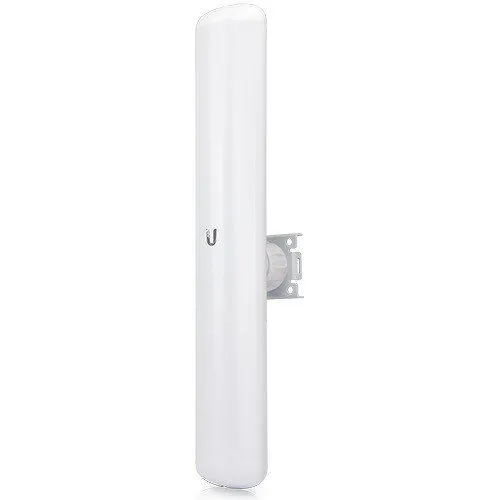
Select an image to view it. Click the main image to enlarge.
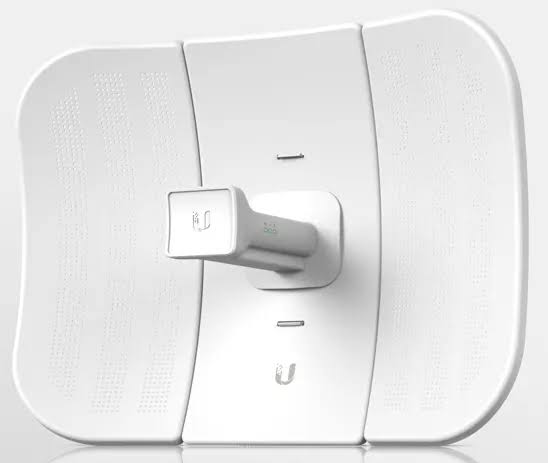
Ubiquiti LAP-120 LiteAP AC Access Point Price in Kenya
In stock
KES 11,500.00
KES 11,999.98
You save KES 499.98
Buy Ubiquiti LAP-120 LiteAP AC in Kenya. Explore its 5GHz radio, 120° sector, 16dBi antenna, Gigabit port, compatibility and setup guide.
View product detailsNeed help choosing?
Talk to our team at +254 714 804 532
Product details
Ubiquiti LiteAP AC LAP-120 Access Point Price in Kenya
The Ubiquiti LiteAP AC LAP-120 Access Point carries data across a planned outdoor radio link. It can help connect a remote building or a customer site where a cable route is hard to build. Use it with a supported radio at the far end, then feed the remote LAN through Ethernet. Its main strengths come from the right path, power supply, and setup. They do not come from a fixed distance claim.
Best fit: A base station feeding matched AC clients within a planned sector. Integrated airMAX AC sector base station. This is not a UniFi access point or the LAP-GPS.
See the LAP-120 product page at Reisen to check the model when preparing your order. Ask for the exact supplied version and a full parts list. This makes it easier to compare a complete working package with a bare device.
For the same model or the nearest listed option, start with LAP-120 at Orbitlink and LAP-120 at Tawa. Read the full product code on each page. Any alternative named here has its own limits and may need changes elsewhere in the system. Compare the package and the job it must do, rather than the case shape alone.

Choose the exact model, get a current quote, then agree payment and fulfillment.
Key Specifications
|
Feature |
Details |
|
Model |
LAP-120 |
|
Product type |
Outdoor airMAX radio |
|
Band |
5GHz |
|
Antenna gain |
16dBi; nominal 120° sector |
|
Ethernet |
1 × Gigabit Ethernet |
|
Power |
24V passive PoE |
|
Setup |
airOS; match the remote radio |
|
Package |
Confirm the exact supplied accessories before ordering |
An integrated sector rather than an indoor AP
The LAP-120 combines a 5GHz airMAX AC radio with a 16dBi, nominal 120° sector antenna. It can serve matched outdoor client radios in a planned area. A phone is not an airMAX AC subscriber radio. Add an normal access point at the remote LAN if users need Wi-Fi. This integrated design avoids the separate radio and RF leads of a passive sector assembly. It also differs from LAP-GPS, so keep the full name on the order. Plan the client directions and busy-hour traffic before installing it. The sector angle does not promise equal signal at every point within a drawn wedge.
Compatibility

Match the delivered hardware and its manual. A similar connector is not proof of compatibility.
A link between 2 places
The LAP-120 can carry a network connection over a clear outdoor path. It belongs in a planned radio link. A radio at the far end receives that link and hands it back to Ethernet. From there, a switch can serve wired devices. An access point can add Wi-Fi inside the building. This layout can help when a cable route is hard to build. It still needs local power at both ends. Write down what the far building needs before choosing the pair.

Wired interface classes only. Actual wireless and application throughput depend on the full link.
Choose the right radio family
The band is 5GHz. The radio family must also match the other end. A 5GHz label alone does not prove that 2 radios can link. airMAX M, airMAX AC, airFiber, LTU, and UniFi have different roles and rules. Some supported mixed modes exist, but they depend on exact hardware and software. For a new pair, choose a documented combination. For a repair, record the working base station first. Send its full model to Reisen with your order request.
Give the signal a clear path
A good link needs more than a view of the other roof. The signal also uses space around the straight path. This area is called the Fresnel zone. Trees, walls, and raised ground can enter that space. A link may work when the trees are dry, then struggle later. Survey both ends and allow for plant growth. Choose a mount that gives a sound path and can be reached for service. Do not set the range from antenna gain alone.
A further comparison is LAP-120 at Ubiquiti UniFi Kenya. Keep the radio family, power method, and data interface in view. Where the linked item is a newer model or another voltage, treat it as a separate choice. It is not a blanket replacement for the LAP-120.
Aim for a clean signal
Turn the front of the antenna toward the remote radio. Small changes can matter, so move it slowly. Read signal quality at both ends as you align it. A strong reading is useful, but noise and errors matter too. The best aim gives a steady link under load. It is not always the point with the largest signal number. Tighten the mount, then check again. Wind or a loose pole can undo careful setup and cause faults that seem random.
Match speed to the whole path
The wired interface is 1 × Gigabit Ethernet. That port sets one limit on traffic crossing it. The radio path, internet plan, and remote devices add other limits. A Gigabit socket does not promise Gigabit radio speed. A Fast Ethernet socket cannot pass a full Gigabit stream. Test with local devices at both ends to see the bridge itself. Then test the internet service. Keep the results separate so a slow provider connection is not blamed on a good radio link.
Pick a channel for the site
A channel is a slice of radio space used by the link. Nearby networks may share or overlap that space. Scan at both ends before choosing it. Use the right country setting and the channels allowed for the site. A wider channel can carry more data in good conditions. It also needs more clear radio space. Start with a stable choice and test it. Raising power or width at random can make a weak design harder to fix.
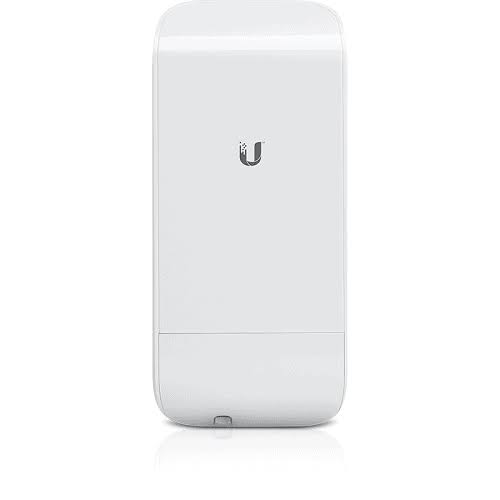
Broader link choices include the Loco M5 and NanoStation radio alternative. These have different bands, antenna forms, or radio generations. Choose a supported pair or a planned full upgrade. A similar name alone does not make the far end accept a new radio.
Keep power and data roles clear
The required power method is 24V passive PoE. Use the exact approved supply and the right injector port. The LAN side connects to normal network gear. The powered side goes to the radio's power input. Passive PoE is not the same as every PoE switch output. Check voltage, wiring, and available power before a change. Keep the supply in its rated setting. Outdoor radios may be weather resistant while their indoor injector and mains lead still need dry shelter.
Protect the outdoor cable route
Use cable and connectors rated for the exposed route. Follow the radio maker's shield and grounding guidance. Plan surge protection and a proper earth path with the installer. These steps reduce risk but do not make any radio immune to lightning. Point cable entries as the manual directs. Add strain relief so the plug does not carry cable weight. Leave a drip loop where needed. A neat route also makes a faulty cable easier to find and replace later.
Bridge a LAN or route a subnet
In a simple bridge, the radio pair carries the same LAN between places. Devices at the far end can receive addresses from the main router. A routed layout keeps a separate network at the far end. It needs a clear address and firewall plan. Choose the mode that fits the job before setup. A link light does not prove that the chosen LAN passes through. Test a normal user device, including its address, DNS, and access to the services it needs.
For another platform, review the MikroTik LHG 5 ac. Its radio system has its own setup rules. The copper LAN beyond a radio link may also need network switching gear. A switch serves local sockets; it does not solve an incompatible wireless pair.
Plan a base station around its clients
A base station serves several client radios in a point-to-multipoint system. Those clients share airtime and the upstream service. Their direction, distance, and traffic load all matter. A sector can cover a broad planned area. A narrow dish is better suited to one main direction. Neither shape gives equal service at every point on a map. Do not buy by an unsupported client count. Ask how the proposed radios, antenna pattern, and busy-hour traffic fit together.
Keep control access safe
Give the radio a clear name and a unique management address. Management means the settings used by the person who runs the link. Keep that access on a trusted network. Use a strong admin password and supported wireless security. Save the working setup before major changes. A separate management Wi-Fi radio, where fitted, is a setup aid. It should not be sold as a normal hotspot for phones. Record how the owner can reach the settings after the installer leaves.
Use a link test that reflects real work
Try traffic in both directions across the link. Include the tasks the site will use, such as camera viewing or file access. Watch for dropped packets, high delay, or radio restarts. Test while several users work if that is the normal load. A quick idle test can hide shared-capacity limits. Note the channel, signal readings, and time of the test. This record gives you a fair point of comparison if the service changes after a new building or nearby network appears.
Complete the wired side with the right cable, such as an appropriately specified Cat6 cable option. If the setup needs a separate gateway, compare the MikroTik RB5009. Check cable suitability, power, and interface speeds before approving the whole package.
Quick Brand Comparison
|
Choice |
What to compare |
|
Ubiquiti airMAX |
Match M or AC family, band, antenna, and the far end. |
|
MikroTik outdoor wireless |
A separate platform choice; design a supported complete link. |
|
Ubiquiti UniFi |
Primarily client Wi-Fi here; can serve users on a LAN beyond a bridge. |
|
TP-Link Pharos |
A different outdoor-radio system; do not assume proprietary modes interoperate. |
Brand names help narrow a search, but the model does the job. Start with the same product when checking a replacement. If a close alternative is needed, compare the whole connection. A different power method, radio family, or software platform can change the parts and setup needed.
Can It Be Used with Starlink?
Yes, it can form part of a downstream Ethernet network fed by Starlink. A suitable Ethernet handoff reaches the local radio through the right injector. A matched remote radio can then extend that LAN to another building. It does not communicate with Starlink satellites or replace the dish. Local power is needed at each end of the bridge.
For the satellite side, review Starlink Kenya Installers and check the generation and handoff before ordering local network parts. Keep the satellite subscription, indoor LAN, and any remote link as clear parts of the plan. Changing the local gear does not remove provider limits such as carrier-grade NAT.
How to Set Up the LAP-120
1. Write down both endpoints
Record the 2 model codes, bands, power sources, and the job of the link. Mark which end faces the main LAN. Choose separate management addresses so the radios cannot clash. Keep the current working setup if this is a replacement.
2. Prepare the pair on a bench
Use short, known-good cables and the approved power supplies. Assemble the antenna parts before use. Connect a setup computer through the correct LAN side of the injector. Keep any passive powered port away from normal computer sockets.
3. Open the setup interface
Use the access method in the supplied quick-start guide. Some units use a wired setup address; some add a separate management radio. Use the credentials on the label or the supplied instructions. Do not assume that every unit has the same default login.
4. Set names, country, and security
Give each radio a clear name. Select the correct country and lawful radio settings. Change the admin password. Choose supported wireless encryption and a strong link key. Save a record for the owner without putting passwords into public files.
5. Match the wireless roles
Set a supported AP role on the main end and Station or client role on the remote end. Match the intended name, band, channel width, security, and platform mode. For a sector base station, set up each approved client within the same planned system.
6. Set the LAN behavior
Choose bridge or routed mode based on the network plan. Give the management interfaces unique addresses. For a bridge, test that the correct DHCP service can reach the remote LAN. Keep any VLAN settings consistent across radios, switches, and the gateway.
7. Mount and align the link
Use the surveyed supports. Protect the cable route and follow the grounding plan. Aim in small steps while reading both ends. Tighten the mount, then recheck signal quality. Keep the power supply dry where its rating requires indoor use.
8. Test, save, and hand over
Pass traffic in both directions. Verify client addresses and the actual work apps. Watch for errors and restarts under load. Save the setup securely and record signal readings, channel, cable roles, and mount locations. Give the owner a clear support record.
Advantages
· Creates a wireless Ethernet path where a cable route is hard to build.
· Integrated radio and antenna reduce separate RF parts on this model.
· Can serve a defined bridge or customer-radio role in a supported system.
· Lets indoor Wi-Fi gear sit at the remote LAN where users need it.
Disadvantages and Limits
· Needs a supported remote radio and a surveyed path.
· Real traffic speed depends on more than antenna gain or port class.
· Outdoor mounting, cable protection, and power add to the project.
· Radio families and passive power sources are not freely interchangeable.
Troubleshooting
Power is present but users cannot connect
Check the data path, address service, and main gateway. A lit power indicator does not prove a working LAN. Try one known-good wired path first. Then test the radio or Wi-Fi link in its intended mode. Keep a note of the first step that fails.
Service drops under load
Inspect power, cable quality, error counts, and the shared path. Test the expected busy workload. A fault that appears only during use can be hidden by a short idle check. Compare against the saved working result before changing several settings at once.
Frequently Asked Questions
Will one radio connect 2 buildings?
A normal point-to-point bridge needs matched radios at both ends. One unit may be enough only when the far end already has a supported base station or radio. Check that far-end model before ordering. Each active end also needs power and suitable cabling.
Can phones join it like indoor Wi-Fi?
Do not treat an airMAX link as an normal phone hotspot. Its main job is to connect supported radio gear. A separate access point can serve phones on the remote LAN. A built-in management radio, where fitted, is for setup rather than general customer access.
Does the antenna gain set the range?
No. The path, mounting height, noise, radio mode, and legal settings all affect the result. Trees or buildings can spoil a path even at a modest distance. Use a survey and a tested link plan. Gain is one part of that plan, not a distance promise.
Can I change only one end during an upgrade?
Only after checking the supported radio combination and mode. A new AC endpoint is not automatically a drop-in replacement for an M-series radio. The exact software also matters. Keep a working backup plan and test the intended pair before removing the old link.
Why does the radio link work but internet fail?
The radio may be passing a link while the wider LAN has a fault. Check client addressing, DHCP, DNS, gateway access, and VLAN settings. Test a wired device at the main router too. This helps separate a bridge problem from an upstream service problem.
What should I send with a quote request?
Share the model code, distance, site photos, mounting choices, and far-end gear. Explain the busy-hour workload and whether a full pair is needed. Ask for power supplies, outdoor cable, surge protection, mounts, and setup work to be listed. The radio alone is not every part of the setup.
Check the package before you book installation
Ask for a clear list of what comes with the LAP-120. Match the model code, power parts, mounts, and cable items to the quote. Some accessories may be separate. Check the labels before the installer travels to site. If the order covers several places, label each set for its destination. Keep the invoice and relevant packaging. This makes it easier to resolve a missing part without guessing what the original order was meant to include.
Make the first test easy to repeat
Start with a known-good cable and a simple network path. Use one change at a time. Record the result before moving to the next step. If the full site fails but a short bench test works, focus on the route and neighboring gear. A simple test plan saves time. It also gives the owner useful proof that the supplied product, the chosen accessories, and the installed path work together.
Plan for service and future changes
Leave room to reach plugs, read labels, and replace a cable. Save settings securely where the product has software. For a passive part, keep the exact model and the test record instead. A future upgrade may change power or data needs. Recheck the full connection before reusing old accessories. Good records help a technician keep useful parts and change only the section that needs work. This can reduce avoidable cost and downtime.
Why Shop with Reisen
Reisen brings routers, wireless links, switches, access points, and cable products into one shop. This lets you build a more complete order around the job. Start with the model you need, then check the parts around it. Ask the team to check the exact package and current availability. You can also request a quote that lists setup and delivery separately. Clear stock details and a clear parts list are more useful than a vague promise.
Get a quote that covers the whole job
Send the product model, quantity, location, and main use to Reisen. Mention any existing hardware that must stay. Ask for the current price in Kenya and the terms that apply to that order. Check payment, collection or delivery, warranty, returns, and support before paying. If setup is needed, agree on the scope and the test that will show the job is complete. Keep those details with the order so both sides have the same reference.
Build the Rest of Your Network
A RB5009 wired router can handle the gateway role when the site needs that level of control. Set its LAN and firewall to match the planned link.
Use an 8-port Gigabit switch to add local sockets beyond the link. It does not raise the speed of a slower radio or wired handoff.
For the protected indoor route, choose RDCOM Cat6 cable only after checking its conductor and jacket. Exposed routes need correctly rated cable of their own.
An EAP115 indoor access point can add a defined indoor Wi-Fi role at the far LAN. It needs its own approved power source.
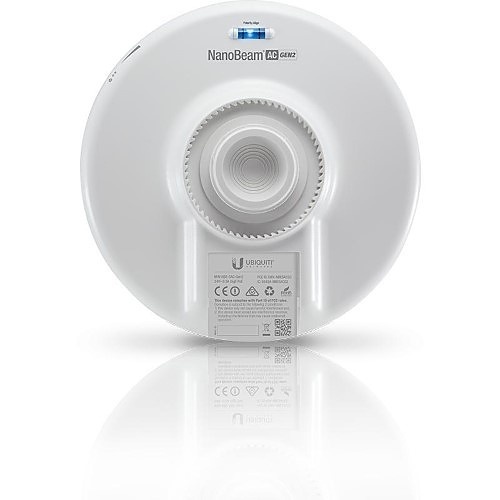
Compare Ubiquiti airMAX NanoBeam AC NBE-5AC-Gen2 when its different form or role fits the job. Match the full system before treating it as a replacement.
For another product choice, open Ubiquiti airMAX NanoStation Loco M2. Its own band, power, and setup needs still apply.
Round out the shortlist with Ubiquiti airMAX NanoStation Loco M5. Check the exact model against your site plan and the devices that stay in service.
Browse related gear at Reisen and the full Reisen shop to prepare one parts list. Keep the LAP-120 code beside the quote so the supplied model stays clear.
Ready to order? Contact Reisen with your quantity and site needs. Check the current price, exact package, and agreed terms before payment. Include setup, delivery or collection, and any extra parts in the same request.
Additional information
| Product | Ubiquiti LAP-120 LiteAP AC Access Point Price in Kenya |
|---|---|
| Category | Ubiquiti Network Devices |
| Price | KES 11,500.00 |
| Availability | In stock |
Keep exploringMore in Ubiquiti Network Devices
Related products