
Save 10%

Select an image to view it. Click the main image to enlarge.
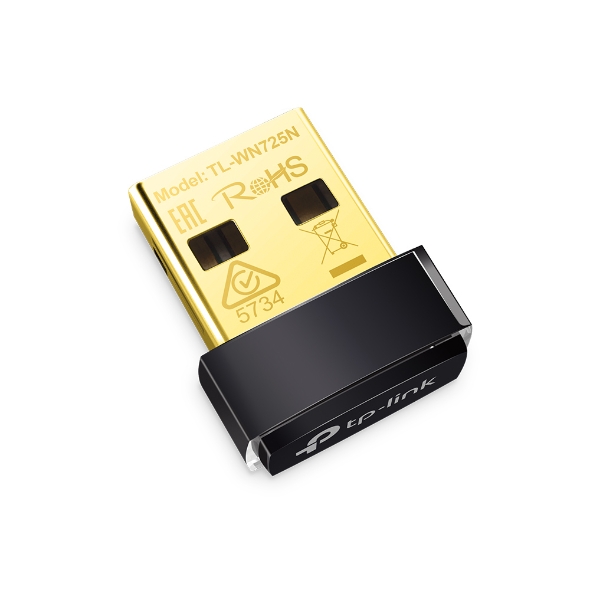
150 Mbps TP-LINK Wireless USB Adapter TL-WN725N Price in Kenya
In stock
KES 900.00
KES 1,000.00
You save KES 100.00
Buy TP-Link TL-WN725N 150Mbps Wireless USB Adapter in Kenya. Add 2.4GHz Wi-Fi to a compatible laptop or desktop with a compact nano USB design.
View product detailsNeed help choosing?
Talk to our team at +254 714 804 532
Product details
TP-Link TL-WN725N 150Mbps Nano Wireless USB Adapter Price in Kenya
The TP-Link TL-WN725N adds 2.4GHz Wi-Fi to a compatible computer through a USB port. It is useful for a desktop without a wireless card, a laptop with an unsuitable built-in adapter, or a spare computer being returned to everyday use. Its small Nano design keeps protrusion low and is convenient where desk or bag space is limited. It connects to an existing wireless network; it does not supply an internet subscription.
Explore the TL-WN725N at Reisen and select the complete model and supplied package needed for your installation.
For adapter selection, compare TL-WN725N at Orbitlink and TL-WN725N at Tawa. Match the full model and hardware revision, then check host-driver support.

Confirm your requirements with Reisen, then agree the quote and fulfillment arrangements.
Key Specifications
|
Feature |
Specification |
|
Host interface |
USB 2.0 |
|
Wireless band |
2.4GHz |
|
Wireless standards |
IEEE 802.11b/g/n |
|
Maximum advertised wireless rate |
150Mbps |
|
Antenna |
Internal |
|
Format |
Nano |
|
Power |
USB bus power |
|
Driver support |
Check the exact hardware revision, operating system, and driver release |
How It Fits Your Network

PHY classes, not measured throughput. Both require a supported host, driver, and Wi-Fi network.
Check driver support first
Operating-system names on older product packaging can be broad. Confirm a driver for the exact hardware revision, operating-system release, architecture, and security requirements of the intended computer. Do not assume that an old macOS or Linux reference guarantees support for every current release or kernel. Download the correct package before removing the computer’s only working internet connection.
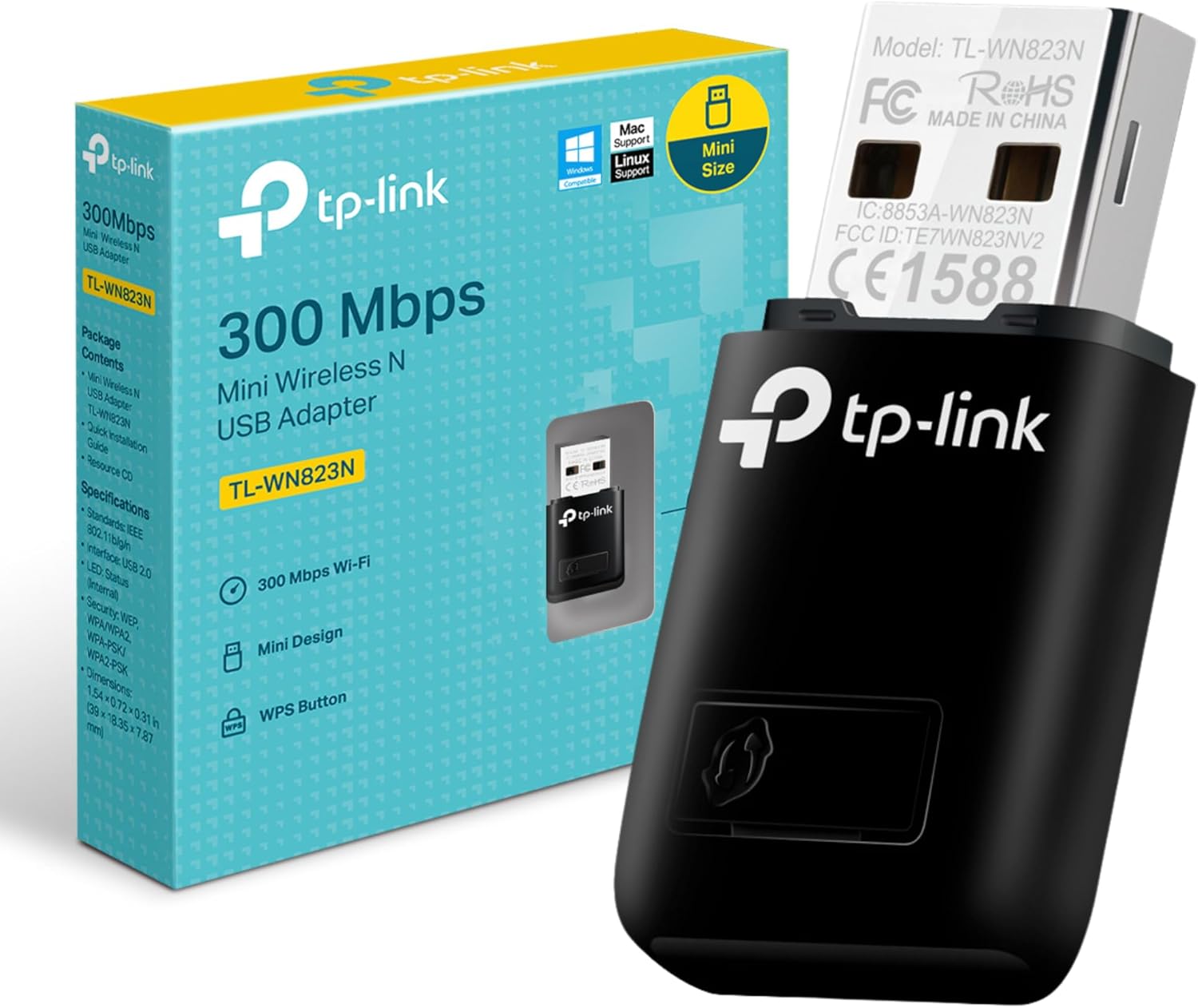
The related alternatives TL-WN823N at Orbitlink and TL-WN823N at Tawa offer another compact USB format. Compare their advertised radio class without treating it as measured throughput.
Wireless performance in context
The 150Mbps figure describes a maximum advertised Wireless N link-rate class. Actual application speed is lower and depends on the access point, radio conditions, security settings, and client driver. This is a 2.4GHz-only adapter: it cannot discover a 5GHz-only SSID. It also does not turn the computer into a Wi-Fi 6 or multi-gigabit client.
For room coverage rather than a single computer interface, assess TL-WA855RE at Orbitlink and TL-WA855RE at Tawa. An extender is a different device with an upstream wireless dependency.

The adapter adds Wi-Fi to its host. It does not supply data service or Bluetooth.
USB placement and reception
A computer’s metal chassis and furniture can obstruct the internal antenna. Try an accessible USB port with a clearer path to the router. A suitable short USB extension can sometimes improve positioning, but an unreliable hub or damaged cable can introduce its own faults. Avoid forcing the adapter into a crowded port arrangement or leaving it where it can be knocked.
If replacing the source network is the better solution, compare a MikroTik RB951Ui-2HnD router with a design using a separate UniFi access point. Their configuration and power requirements differ.
An adapter is different from an extender
The device adds a Wi-Fi interface to its host computer. It is not a wall-plug range extender and does not automatically improve coverage for the entire room. Any software hotspot feature depends on the host operating system and driver, and the computer must remain running. Select a dedicated access point or extender when the goal is network-wide wireless coverage.
For a wired alternative or an access-point uplink, assess TP-Link switching options and suitable Cat6 cabling. Ethernet can avoid a weak wireless hop where a cable route is feasible.
Check the complete computer connection
Record the computer model, available USB ports, operating-system version, adapter hardware revision, and router band. If a modern high-speed Wi-Fi connection is the objective, compare a newer dual-band adapter with confirmed host support. If the problem is the room’s weak signal, improving access-point placement may help more than replacing only the computer accessory. The right purchase depends on which part of the connection is actually missing or restricted.
Add Wi-Fi to a compatible host computer
The TL-WN725N gives a supported computer a wireless interface through USB. It can be useful for a desktop without working Wi-Fi or a laptop with an unsuitable internal adapter. The host still needs a compatible operating system and driver, and the network still needs a working router or access point. The adapter does not supply mobile data, Bluetooth, or internet service by itself. Identify the actual missing function before buying: a computer with a sound Wi-Fi interface but poor room coverage may benefit more from a better access-point location than from another USB accessory.
Match the hardware revision and operating system
Drivers are tied to specific hardware revisions and supported operating systems. Record the full version from the supplied label and check the matching support information before installation. Do not assume that every device sharing a model name uses an identical driver package. If the computer will initially have no network access, prepare the correct installer through another trusted connection first. Keep a copy with the deployment notes for future recovery. A clear driver plan is particularly useful when several office computers use different operating-system releases or are maintained without automatic internet access.
Understand the 2.4GHz wireless class
The advertised rate for this model is 150Mbps on a compatible 2.4GHz network. That is a wireless signaling class, not a guaranteed download speed. The router, channel conditions, client placement, and protocol overhead affect application performance. A 5GHz-only network is outside this adapter's supported band. If a modern high-speed connection is the objective, compare newer adapters with confirmed host support rather than assuming that USB attachment alone determines speed. Choose this model around a defined compatible role, such as everyday access on an existing 2.4GHz network.
Choose a USB position that does not hide the radio
A desktop's rear USB ports may sit behind a metal chassis, desk, or cable bundle. Test a practical alternative port before concluding that the router is too weak. Use a direct reliable connection and avoid an unstable hub while troubleshooting. The compact antenna arrangement is convenient, but placement still affects the radio path. If an appropriate short extension is considered, check that it is a sound USB connection and does not create a new reliability problem. Compare performance from the same computer location so a changed test position is not mistaken for a driver improvement.
Install the driver before changing the entire network
Follow the matching driver procedure and verify that the operating system recognizes a wireless interface. If another Wi-Fi adapter remains active, identify which interface the computer is actually using. Join the intended 2.4GHz network with its correct credentials and check the resulting IP address, gateway, and DNS settings. A missing adapter in device management is a different issue from an adapter that joins Wi-Fi but cannot reach the internet. Work through those layers in order rather than changing the router's channel, password, and DHCP settings simultaneously.
Keep wireless security compatible and protected
Use a security mode supported by the host, driver, adapter revision, and access point. A saved password or old network profile can prevent association after the router changes, so remove or update the profile where appropriate. Avoid making a private network open merely to bypass an unresolved compatibility issue. If the organization's security requirement exceeds what the legacy adapter supports, select compatible newer hardware. The correct purchase is the one that fits both the host and the network policy, rather than an accessory that can only connect after weakening the intended settings.
Diagnose sleep and power-management behavior
A connection that stops after the computer sleeps may relate to USB power management, the driver, or the operating system's network handling. Check whether the interface disappears, remains associated, or reconnects without obtaining an address. Review appropriate host settings and supported updates before replacing unrelated network equipment. Test a direct USB port and repeat the sleep-and-resume sequence after changes. Keep the normal operating behavior in the handover notes when the computer is used for unattended tasks. An adapter can only provide connectivity while the host and its network stack are operating as required.
Test the applications the user actually needs
After installation, verify ordinary browsing, access to local printers, and any required business application. Compare a local transfer with an internet test if throughput is in question. The first check examines more of the Wi-Fi and LAN path, while the second also depends on the service provider and remote server. Use the same computer and test location when comparing adapters. Do not treat the advertised rate as an expected result from every test. Keep the working driver version and hardware revision recorded so future maintenance can reproduce the successful installation.
Build an accurate quotation for TL-WN725N
An accurate quotation starts with the complete product code, quantity, and intended job. Tell Reisen whether this is a new installation, an expansion, or a replacement for equipment already in service. Include the devices it must connect to and any known revision requirements. Ask for accessories and configuration work to be itemized so the product can be compared fairly with another offer. A lower headline amount may describe a different package or omit necessary components. Confirm the current price directly with Reisen; prices shown by other sellers are not a substitute for a quotation covering your actual order.
Check the package before scheduling installation
Confirm the exact contents supplied with the unit or cable order, including any adapter, mounting parts, or termination components that the project needs. Where an accessory is listed as optional, put it on the order rather than assuming it will be in the box. Check the hardware version and relevant labels before work begins, while discrepancies can still be resolved without interrupting service. Keep packaging and purchase records according to the applicable return process. For several sites, identify which equipment belongs to each location so a correct order is not accidentally mixed during deployment.
Agree what a successful handover will include
Write down a short acceptance checklist based on the intended service. It may include a working client connection, correct addressing, an application test, and a clear record of cable or port assignments. Ask for configuration records where the product has settings, or test results where the installation is primarily passive. A power light or visible network name is only a partial check. Where existing equipment is involved, identify who is responsible for faults outside the new product's scope. This avoids confusing a completed supply order with a complete redesign of the customer's wider network.
Protect the working installation during changes
If replacing existing equipment, record the current connections and configuration before disconnecting anything. Schedule work around the users who depend on the service and retain a practical recovery route. Change 1 part of the system at a time where possible, then test the effect before moving to the next change. Keep administrator details and backups secure rather than including passwords in an openly shared worksheet. A documented installation is easier to maintain and helps the owner distinguish a product fault from a changed cable, account, upstream service, or incompatible replacement accessory.
Compare total project value rather than isolated features
The most useful product is the one that meets the actual requirement with a clear installation and support plan. Consider accessories, compatible neighboring equipment, setup time, and future service access alongside the hardware itself. Do not pay for a feature the project cannot use, but do not omit a necessary capability merely to reduce the initial order. If the requirement has changed since the original specification, reassess the whole connection path before buying an identical replacement. A short description of the site and workload helps Reisen recommend a coherent package without relying on unsupported user counts or coverage claims.
Confirm commercial terms before completing payment
Ask Reisen to confirm availability, the quoted package, applicable warranty and return terms, and the agreed collection or delivery arrangements. These details should come from the current transaction rather than assumptions based on an older listing. If installation or remote setup is required, confirm whether it is included and what access or preparation the customer must provide. Keep the final quotation and the equipment model together in the order record. This makes the purchase easier to check on arrival and gives both parties a clear reference if an accessory or service detail needs clarification.
How to Set It Up
1. Identify the full hardware version from the adapter or packaging. Confirm a matching supported driver for the computer.
2. Download the official driver through an existing connection if it will be needed. Retain the installer locally before changing network hardware.
3. Insert the adapter into a suitable USB port. Allow a supported operating system to detect it or install the correct driver package.
4. Open the computer’s network settings and select the intended 2.4GHz SSID. Enter the Wi-Fi password securely.
5. Verify that the computer receives an address and can reach the local router. Test internet access separately from basic wireless association.
6. If performance is poor, try a better USB position and inspect signal quality, driver status, and nearby interference. Keep the working installation package for recovery.
Troubleshooting
The adapter is absent from network settings
Check the USB connection, device status, and exact driver. Test a direct port rather than an unreliable hub and confirm the operating system supports that hardware revision.
The expected Wi-Fi name is missing
Verify that the network broadcasts on 2.4GHz and uses security supported by the adapter and driver. A 5GHz-only network cannot appear as a compatible option.
Connections pause when the computer sleeps
Review the host operating system’s USB and network power-management settings. Apply changes appropriate for the computer rather than treating every interruption as a router fault.
Advantages
· Adds wireless connectivity without opening the computer.
· Compact USB format is easy to move between suitable hosts.
· USB power avoids a separate mains adapter.
Disadvantages and Limitations
· 2.4GHz-only Wireless N capability.
· Exact operating-system support depends on drivers and hardware revision.
· Internal-antenna reception depends strongly on placement.
Frequently Asked Questions
Does it include internet data?
No. Connect it to an existing Wi-Fi network with its own internet service.
Can it connect to 5GHz?
No. It supports 2.4GHz networks.
Will it work without a driver?
Some supported systems recognize it automatically; others need the correct driver. Verify the exact revision and operating system.
Does it work as a Bluetooth adapter?
No. It is a Wi-Fi adapter, not a Bluetooth radio.
Can I install it on any TV or printer?
Do not assume so. The host must explicitly support this USB adapter and its required driver.
Complete Your Order at Reisen
For a complete installation, also review TP-Link TL-WN823N 300Mbps Mini Wireless USB Adapter and TP-Link TL-WA855RE 300Mbps Wi-Fi Range Extender. These have different roles or capabilities; choose them according to the system described above rather than assuming automatic interchangeability.
Request the current TL-WN725N price in Kenya from Reisen and confirm the exact hardware revision, supplied accessories, quantity, and any configuration work. Use Reisen’s contact page to share your requirements. Confirm applicable warranty, return terms, payment arrangements, delivery or collection options, and any installation charges before completing the order.
Build a Compatible System with Reisen
Consider Reisen’s Ethernet cable where a wired computer connection is practical.
Consider Reisen’s 8-port Gigabit switch for additional wired sockets.
Consider Reisen’s EAP115 access point for an appropriately powered indoor wireless source.
Consider Reisen’s TL-MR6400 LTE router when the internet service itself must come from a compatible active SIM.
Consider Reisen’s RB5009 wired router for a different gateway role that still requires a separate access point for Wi-Fi.
Browse the relevant Reisen product category to assess the rest of the installation, and use the Reisen shop to prepare a combined order. Keep the TL-WN725N model code in your request so accessories, revision details, and setup work can be confirmed together.
Additional information
| Product | 150 Mbps TP-LINK Wireless USB Adapter TL-WN725N Price in Kenya |
|---|---|
| Category | USB Wifi Adapters |
| Price | KES 900.00 |
| Availability | In stock |
Keep exploringMore in USB Wifi Adapters