Save 18%
Select an image to view it. Click the main image to enlarge.
TP-LINK 4G Mifi M7200 Price in Kenya
In stock
KES 4,500.00
KES 5,500.00
You save KES 1,000.00
Buy TP-Link M7200 4G LTE MiFi in Kenya at Reisen SEO. Share mobile data with up to 10 Wi-Fi devices using a compact rechargeable hotspot.
View product detailsNeed help choosing?
Talk to our team at +254 714 804 532
Product details
TP-Link M7200 4G LTE Mobile MIFI Price in Kenya
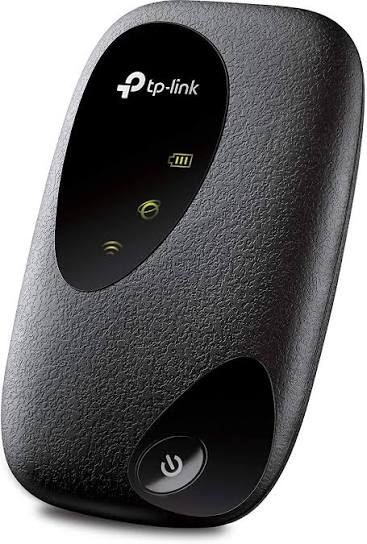
Carry a small shared Wi-Fi connection to meetings, field visits, or temporary workspaces with the TP-Link M7200. It uses a compatible mobile-data SIM to create a local 2.4GHz hotspot. The rechargeable battery lets it work away from a wall socket for a limited period.
The M7200 supports up to 10 connected wireless devices. All of them share the same mobile connection and data allowance. Its LTE maximum is up to 150Mbps download and 50Mbps upload under suitable network conditions, not a speed guarantee in every Kenyan location. The 2000mAh battery is rated for up to 8 hours under specified conditions; signal strength, traffic, age, and settings change runtime. It has no RJ45 LAN port, so it is not a direct wired failover modem for every router.
Looking to purchase M7200 in Kenya? Confirm the current stock, exact package, and total quotation with Reisen. Choose the product for the real installation rather than the model name alone.

Choose the exact model, confirm the complete package, approve the quote, and arrange delivery.
Key Specifications
|
Item |
Details |
|
WAN |
Compatible 4G LTE or supported 3G mobile network |
|
Maximum LTE rates |
Up to 150Mbps down and 50Mbps up |
|
Wi-Fi |
2.4GHz; up to 10 wireless clients |
|
Battery |
2000mAh; up to 8 hours under stated conditions |
|
Power connector |
Micro USB |
|
SIM |
1 slot; confirm physical SIM size for revision |
|
Management |
tpMiFi app and supported web interface |
|
RJ45 Ethernet |
None |
Compatibility

Use the exact supplied hardware or component specification for the final compatibility decision.
Compatibility depends on the complete connection, power, physical, and service design. Check the exact model at both ends before ordering.

The steps summarize the workflow; use the matching manual for exact dimensions and settings.
A temporary team hotspot example
Before a field visit, activate the data SIM, check the APN, charge the battery, and test the actual laptops or phones. Agree which tasks matter most when several users share the link. Large background updates can use the bundle and capacity needed by a video meeting. The M7200 can serve nearby wireless users during a temporary interruption, but it lacks the RJ45 handoff expected by many automatic failover designs. Do not promise that plugging in a charging cable makes it a supported WAN modem for any router. Test runtime under realistic traffic and keep a suitable charging plan for the full working period.
Share mobile data in a small portable hotspot
A MiFi uses a supported mobile SIM and cellular network to give nearby devices a Wi-Fi connection. It is useful when moving between temporary work areas, attending meetings, or connecting a small team away from a fixed router. The mobile operator, coverage, plan, and device variant determine where it can work.
The hotspot does not include free mobile data by itself. Check that the SIM is active, its plan permits the intended use, and the device supports the operator’s bands in the area. A phone showing coverage is useful context but not a complete compatibility test. Regional hardware variants and operator restrictions can matter, so confirm the actual supplied unit before travel or bulk purchase.
For additional equipment in the wider installation, review managed access switches. Match the actual hardware label and accessories before approving a cross-brand or cross-version replacement.
Treat LTE rates as limits rather than promises
The listed maximum download and upload rates are capability figures under suitable conditions. Local signal, congestion, band support, network scheduling, and the server being used all affect the result. A rural field site can behave differently from an office near a mobile base station. Test the important location when reliability matters.
The local Wi-Fi link is another part of the path. Keep the MiFi near the users and away from heavy obstructions. The maximum client count does not give every client the full mobile rate at once. Video meetings, updates, cloud backups, and streaming all share the same capacity. Agree a practical use plan for a small group rather than treating the hotspot as a replacement for every office network.
Keep the battery and charging plan realistic
Runtime depends on signal conditions, traffic, number of active clients, battery age, and settings. A stated up-to figure is not a guaranteed working day. Weak signal can make a portable hotspot less efficient, and constant heavy use changes the result. Include a suitable charging option for the intended trip or field task.
Use the approved battery and a suitable USB power source as described in the exact guide. Inspect the battery for damage or swelling and follow its safe handling instructions. Do not leave the unit in a hot vehicle or cover it while charging. Check any power-bank arrangement with the actual device rather than assuming that every USB socket will maintain stable operation.
For gateway comparison, start with MikroTik mobile-network alternatives and CCR2004 optical router. These are network design choices rather than identical substitutes. Match WAN method, required processing, and interface type.
Configure the SIM and APN correctly
Power off before fitting or removing the SIM and battery as the guide directs. Use the correct physical SIM size and avoid improvised adapters that can damage the slot. Confirm the PIN state and operator APN. Automatic detection can help, but it is not proof that every operator profile is correct.
If the hotspot connects to Wi-Fi but has no internet, inspect SIM registration, data balance, PIN state, APN, and cellular status. Repeatedly changing the Wi-Fi password will not fix an inactive SIM. Keep roaming disabled unless it is needed and its charges are understood. For cross-border use, check service and band support before leaving the area where testing is easy.
If the site needs a different wired gateway, review CCR2004 matching model listing and hEX RB750Gr3 wired router. A router and an access point have different jobs; keep coverage and gateway control separate.
Protect a shared connection
Set a strong Wi-Fi password and a separate administrator password. Share access only with intended users. Check the client list when data use is unexpected. Keep the management app or browser access under the owner’s control and use the supported application for the exact model, not an unrelated router app.
Mobile-data counters can help track consumption, but the operator’s billing remains the reference for the actual allowance. Set suitable limits or alerts where supported. Pause large automatic downloads when using a limited bundle. A small amount of planning can keep a team’s essential task online without spending its data on background updates.
Know the wired-network limits
This model does not provide an RJ45 Ethernet port. It should not be described as a universal wired WAN modem for any router. USB charging also does not prove that every host can use it as a tethered data connection. Choose a device with documented Ethernet or supported tethering if that is the required role.
For permanent office connectivity, compare a suitable fixed LTE router, fiber handoff, or satellite service and a proper local network. A portable hotspot can still be valuable for nearby wireless users during a temporary outage. Keep the recovery plan honest about manual switching, battery runtime, mobile coverage, and client connection steps. Test it before an important meeting rather than during the outage itself.
For a larger or differently connected network, examine hEX S router with SFP and L009 rackmount router. Read the exact model and power specification before transferring a feature from one product to another.
For another rack or branch layout, compare RB5009 router alternative and RB4011 router alternative. Include configuration needs, supporting accessories, and the performance required by the actual services.
To add local wired capacity, look at RB1100AHx4 rackmount alternative and UniFi Standard 24 for downstream access. An access switch complements a gateway; it does not by itself add a mobile subscription or wireless coverage.
Quick Brand Comparison
|
Family |
Main buying distinction |
|
MikroTik RouterOS or CRS |
Model-specific routing, switching, and power |
|
TP-Link unmanaged or consumer |
Exact speed, role, and revision |
|
UniFi managed equipment |
Controller ecosystem and supported interfaces |
|
Other comparable equipment |
Complete installed cost, compatibility, and service support |
Compare exact models and complete installation requirements. A brand family is a starting point, not evidence that every product has the same ports, power, software, or optical behavior.
Can It Be Used with Starlink?
It can be a separate temporary Wi-Fi option for nearby users when a primary connection is unavailable, subject to mobile coverage and an active data plan. It is not a direct Ethernet accessory for the Starlink terminal and should not be promised as automatic router failover.
For terminal-side and site-connectivity planning, review Starlink Kenya Installers and SpaceLink Internet Kenya. Match the local network to the exact terminal generation and approved handoff. Local hardware capability and satellite service performance are separate limits.
How to Set Up M7200
A Step by Step Guide
1. Check the operator and hardware variant
Confirm the exact M7200 revision, supported mobile bands, SIM size, and operator plan. Activate the SIM and verify its data allowance. Obtain the correct APN and PIN information where needed. Check roaming requirements in advance if the hotspot will cross borders or use another network.
2. Fit the SIM and approved battery
Power the unit off and follow the matching guide to open it. Insert the correct-size SIM in its marked orientation without forcing it. Fit the approved battery and close the cover properly. Do not use a loose or damaged SIM adapter or a battery with visible damage.
3. Charge and start the hotspot
Connect the supplied Micro USB cable to a suitable approved power source. Allow the battery to charge as directed and start the unit. Check the status indicators in the guide. Place it in a safe ventilated position with useful mobile signal, away from heat and heavy obstructions.
4. Join the initial Wi-Fi network
Use the label’s initial network details and connect a setup phone or computer. Open the supported tpMiFi app or model-specific browser interface. Create or change the administrator password. Keep initial labels private and avoid sharing management credentials when giving someone ordinary Wi-Fi access.
5. Verify mobile registration and APN
Check cellular status, SIM PIN state, and the selected operator profile. Enter the provider’s actual APN when automatic detection does not establish service. Confirm an active bundle before testing. If registration fails, investigate SIM and band compatibility before resetting the whole hotspot.
6. Set Wi-Fi security and usage controls
Choose a recognizable SSID and a strong password. Review connected devices and supported data alerts or limits. Keep roaming off unless required and agreed. Remember that all clients share the connection and bundle. Avoid large background updates when the hotspot is supporting an important temporary task.
7. Test at the intended location
Use the actual phones or laptops and check browsing, calls, or the required application. Compare a location near a window with another safe indoor position if signal is weak. Check battery behavior under the real workload. Do not treat a short test in a different town as proof of field-site service.
8. Keep recovery and charging details
Record the operator, APN, variant, owner-controlled management access, and charging arrangement securely. Store the device and battery as instructed when not in use. Recheck the SIM balance and battery before each important trip. A portable backup works best when it is ready before the primary connection fails.
Advantages
· Portable Wi-Fi sharing from a compatible mobile SIM.
· Rechargeable operation for temporary tasks.
· Up to 10 clients can share one connection.
Disadvantages and Limits
· Mobile coverage and an active data plan are essential.
· Battery runtime varies and all clients share capacity.
· No RJ45 port for a normal wired router WAN connection.
Frequently Asked Questions
Does it come with free internet?
No subscription or data allowance should be assumed. Confirm the SIM and mobile plan separately unless a written bundle specifically includes them.
Can it connect 10 devices at full speed each?
No. Up to 10 wireless clients share the same cellular connection, Wi-Fi airtime, and data allowance. Practical performance depends on their activity.
Will it run for 8 hours every time?
No. That is an up-to figure under stated conditions. Battery condition, signal, traffic, settings, and charging habits affect actual runtime.
Can I connect a desktop through Ethernet?
This model has no RJ45 Ethernet port. Use a suitable Wi-Fi client or select another device with the documented wired connection required by the project.
Will any Kenyan SIM work?
Confirm band support, operator restrictions, plan terms, and the exact regional variant. An active SIM and correct APN are also needed.
Can it automatically back up a Starlink router?
Do not assume automatic failover or a wired WAN connection. It can provide a separate nearby Wi-Fi connection for users when configured, but router integration needs specifically supported equipment.
Complete the Installation with Reisen
Build a clear parts list around TP-Link TL-WR820N N300 Wi-Fi Router and MikroTik hEX RB750Gr3 5-Port Gigabit Router. Choose each item for a defined role and confirm the links, power, and supplied accessories before combining them.
For another part of the installation, review MikroTik cAP ac RBcAPGi-5acD2nD Wireless Access Point and Easenet Cat6 Indoor Ethernet Cable. A shared brand does not prove compatibility. Read the actual interface and power requirements on both sides.
Keep the service and connection roles distinct when selecting TP-Link TL-SF1024D 24-Port Fast Ethernet Switch and MikroTik CRS326-24G-2S+RM 24-Port Gigabit Switch. These are complementary tools or network choices, not a promise that every item plugs directly into every other item.
The next stage of the project may need Huawei EchoLife HG8546M Optical Network Terminal and MikroTik CRS317-1G-16S+RM 16-Port 10G SFP+ Switch. Ask for a quotation that marks each item as required, optional, or an alternative, so the complete package stays easy to review.
For the wider network, examine MikroTik PowerBox Pro RB960PGS-PB Outdoor Router. Keep the main device, cable routes, and distribution equipment aligned with the planned service. Check each exact model before adding it to the order.
Choosing the right package in Kenya
If you are asking where to buy M7200 in Kenya, start with the exact model and the job it needs to do. Send Reisen the quantity, delivery location, and intended installation date. Include the equipment already in use and any important service requirement. A clear request helps distinguish a direct replacement from a new design that needs extra parts.
The cost of M7200 should be reviewed as part of the complete working package. Ask whether the quoted amount includes taxes, the required accessories, delivery, and any agreed technical work. Hardware, setup labor, and an ongoing provider subscription are different charges. Keep them itemized. This makes the order easier to approve and avoids comparing a bare unit with a fully prepared installation.
What’s in the Box
Standard manufacturer package contents.
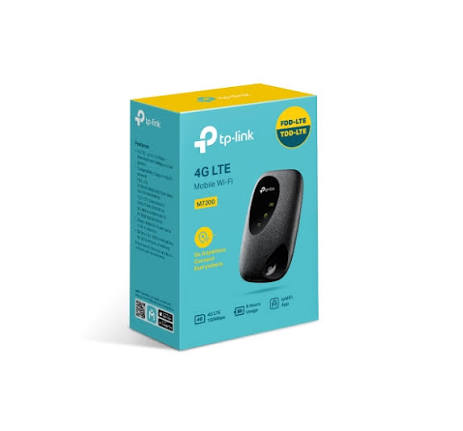
· M7200 Mobile Wi-Fi device
· 2000mAh battery
· 0.4m Micro USB cable
· Quick installation guide
A mains charging adapter, active SIM, and data plan are not assumed included.
Check the sealed package and item list when it arrives. Keep the invoice and model or batch information. Photograph visible shipping damage before discarding the packing materials, and contact Reisen promptly if an item is missing or differs from the order. A package seen in a video may be from another region or revision, so use the actual quotation as the reference for your delivery.
Warranty
Ask Reisen to confirm the current warranty period, coverage, exclusions, and claim process for M7200 in writing before payment. This description does not set a new warranty duration. Confirm who handles assessment, whether a local service route is available, and which supporting records are required. Keep the invoice and any serial or batch details with the product records.
If a fault appears, record the symptoms and any safe checks already performed. Do not open sealed equipment, modify power connections, or attempt an unauthorized repair while seeking a warranty decision. For installation-related concerns, keep the wiring, power, handling, and test records available. They can help separate a product fault from a problem elsewhere in the system without assuming the outcome of a claim.
Return Policy
Confirm Reisen’s current return window, eligibility rules, assessment process, and delivery-charge responsibilities before ordering. Ask specifically about opened, cut, assembled, registered, configured, or specially sourced items where relevant. Do not assume that every product can be returned after installation or that a refund is automatic. The applicable written policy and the circumstances of the order determine the process.
If the wrong item arrives, keep it protected and contact the team with the order reference before using or altering it. Retain packaging and accessories while the issue is reviewed. For a compatibility concern, share the exact connected-device labels and intended use. Getting those details checked before dispatch is usually simpler than arranging a return after the installation has begun.
Product Guides and Documents
Keep the exact product identification, matching technical sheet, supplied quick guide, packing list, quotation, and test record together. For M7200, ask for documents that match the actual hardware or component revision. A similar product’s guide can help explain a general idea, but its power ratings, preparation dimensions, or software controls must not be copied without verification.
Where a technical value is essential to the project, have it written into the approved specification. This may include optical parameters, interface rates, supported power, physical fit, or material grade. If no exact manufacturer SKU is supplied, request that identification before accepting a fixed performance promise. Clear documentation helps with replacements, future expansion, and handing the system to another technician.
Installation Manuals
Use the installation manual for the delivered unit as the final reference for assembly, safe handling, power, mounting, and recovery. The step-by-step guide on this page explains a practical workflow, but it does not replace model-specific dimensions or safety instructions. Ask Reisen for the matching manual before an installer travels to the site, especially when a missing adapter, bracket, or tool could stop the work.
Keep the installed layout and any approved settings with the manual. Record changes after maintenance rather than leaving the original plan out of date. For a provider-controlled product, retain the operator’s instructions as well. For passive components, keep the preparation and test procedure. This gives the owner a useful record instead of relying on memory when another part needs replacement.
Why Shop with Reisen
Reisen brings network equipment, connection parts, and installation accessories into one catalog. That lets you build the order around the job rather than buy a main device and discover missing parts later. Ask the team for current stock information, a clear itemized quotation, and technical checks for the models you already own. Confirm collection, delivery, and after-sales arrangements before approving the package.
We’re working to make Reisen a Leading eCommerce platform in Kenya and a Leading eCommerce platform in Africa through useful product information and clear buying support. For your order, focus on the promises written into the quotation: exact goods, condition, price, included parts, delivery terms, and agreed support. Keep those details together so follow-up questions can be handled against a clear record.
Order M7200 from Reisen
Ready to buy M7200? Open TP-Link M7200 4G LTE Mobile Wi-Fi and confirm the current package with Reisen. Share your quantity, location, and intended use. If installation or configuration is required, request its scope and price separately. Approve the model and accessory list before payment, then arrange collection or delivery using the confirmed order details.
After delivery, check the package before the installation date. Complete the appropriate physical, connection, and service tests at handover. Save the invoice, guides, and test results for later support. A well-chosen product is most useful when the equipment, installation method, and owner’s needs fit the same plan.
Additional information
| Product | TP-LINK 4G Mifi M7200 Price in Kenya |
|---|---|
| Category | Networking Tools & Accessories |
| Price | KES 4,500.00 |
| Availability | In stock |
Keep exploringMore in Networking Tools & Accessories
Related products