Save 11%
Select an image to view it. Click the main image to enlarge.
Mikrotik RBCAPGI-5ACD2ND Price in Kenya
In stock
KES 12,500.00
KES 14,000.00
You save KES 1,500.00
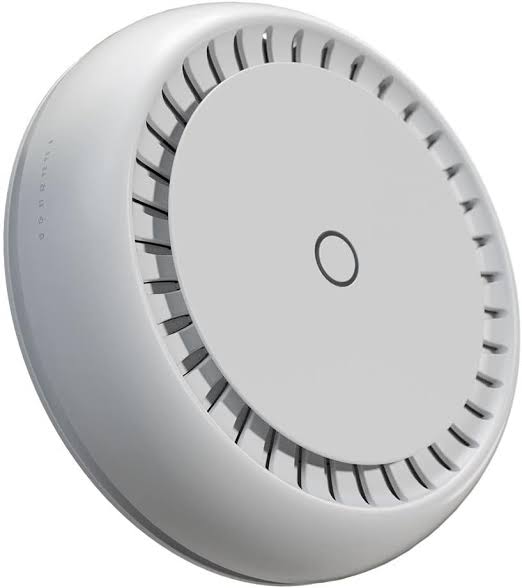
Buy MikroTik cAP ac RBcAPGi-5acD2nD in Kenya at Reisen SEO. Explore a dual-band ceiling access point with Gigabit Ethernet and PoE input.
View product detailsNeed help choosing?
Talk to our team at +254 714 804 532
Product details
MikroTik cAP ac RBcAPGi-5acD2nD Wireless Access Point Price in Kenya
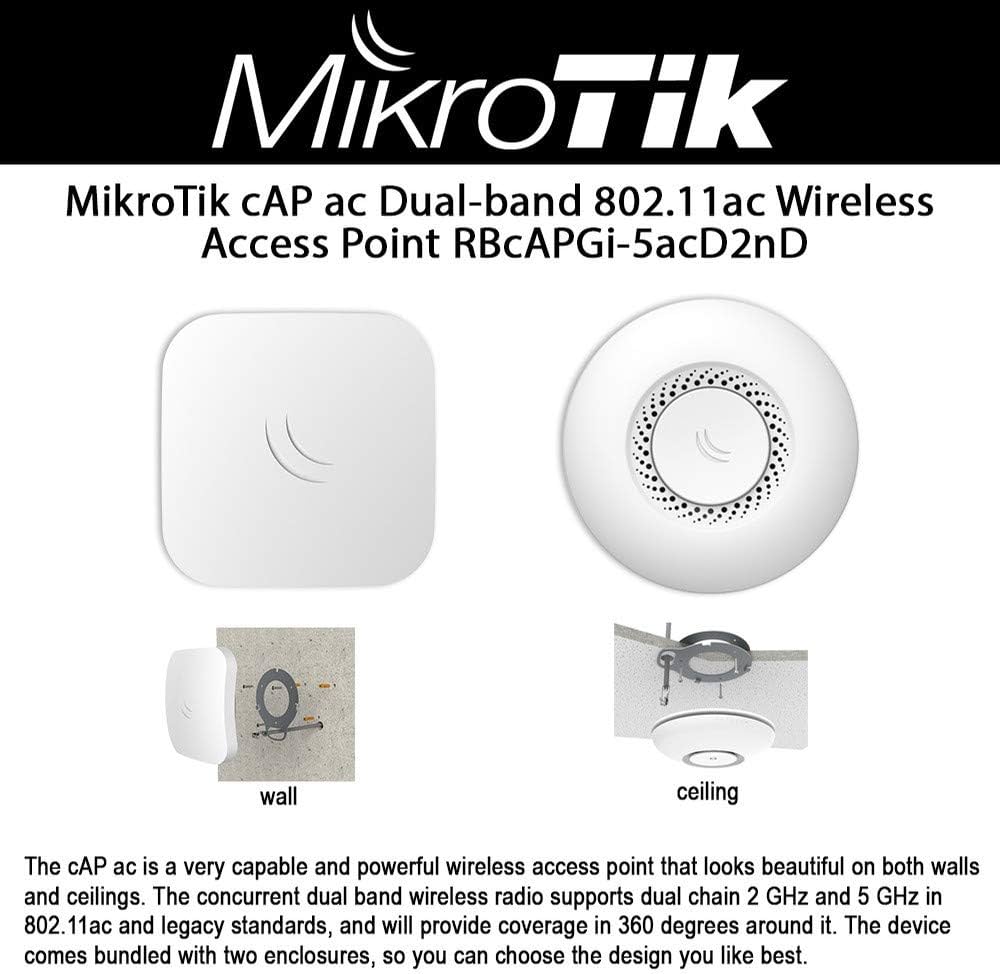
MikroTik cAP ac RBcAPGi-5acD2nD Wireless Access Point brings concurrent 2.4GHz and 5GHz client Wi-Fi to a suitable indoor ceiling or wall position. A planned Gigabit uplink and approved power connect it to the local network. Choose it around actual client locations, a coordinated radio plan, and a matching RouterOS management arrangement.
Request a current RBcAPGi-5acD2nD quotation from Reisen. Confirm the exact item, quantity, supplied package, taxes, warranty, and delivery terms. Include the required supporting parts and installation work so the order covers the intended working setup.

Choose the exact item, confirm the full quote, then agree payment and fulfillment.
Key Specifications
|
Feature |
Details |
|
Model or product |
RBcAPGi-5acD2nD |
|
Wireless |
2.4GHz b/g/n and 5GHz a/n/ac; 2 chains per band |
|
Maximum PHY rates |
300Mbps at 2.4GHz; 867Mbps at 5GHz |
|
Ethernet |
2 × Gigabit RJ45 |
|
Software |
RouterOS Level 4; package and CAPsMAN compatibility matter |
|
CPU and memory |
4-core IPQ4018; 128MB RAM; 16MB flash |
|
Power input |
17–57V; 802.3af/at PoE-in on Ether1 |
|
Power output |
Passive PoE on Ether2; not universal standard PoE-out |
|
Consumption |
12W without attachments; 24W maximum |
|
Environment |
Indoor IP20 |
|
Mounting kit |
Manufacturer lists ceiling mount and injector; verify package |
Dual-band indoor coverage with a separate passive output role
The cAP ac RBcAPGi-5acD2nD combines a 2.4GHz N300 radio and a 5GHz ac radio with a maximum PHY rate of 867Mbps. AC1200 is the combined class label, not a single-client internet speed. Its 2 Gigabit ports support a wired uplink and a separately configured data or passive-power role. Ether1 accepts the approved PoE input, while Ether2 passive output needs exact downstream compatibility and budget checks. A standard PoE input does not make the output a universal standard PoE source. The ceiling or wall format is indoor IP20, not an outdoor radio enclosure. Confirm the supplied mount, injector, and adapter. Before using CAPsMAN or changing wireless packages, check the installed driver and matching controller generation. A tested wired uplink, deliberate channel plan, and well-chosen indoor mounting position are central to the useful result.
Compatibility

Check fit, interfaces, power and the complete intended role.
Match the whole installation: intended role, physical fit, power, signal, software, and the equipment at the other end. Similar connectors or product names alone do not establish a working combination.

Separate maximum PHY figures; not additive single-client speed or guaranteed useful throughput.
Put client Wi-Fi where people need it
The cAP ac is an indoor ceiling or wall access point for a planned local network. Its useful job is to connect compatible wireless clients to the LAN. A wired uplink and correct power arrangement let it serve a room or area without placing the main gateway beside every user. Keep the upstream internet service, gateway, and client coverage as separate parts of the installation.
Choose placement from a site survey and normal client positions. Thick walls, metal shelving, ceilings, and neighboring networks can change coverage. There is no single guaranteed room count that applies to every building. Test a normal laptop or phone at the actual desk or working area. A signal seen near the access point does not prove good performance at the far end of the room.
Use both bands without combining them into one promise
The unit has concurrent 2.4GHz and 5GHz radios. The advertised AC1200 class combines headline radio rates; one client does not receive that combined number as an internet speed. A client uses the supported band and mode available on its connection. Shared airtime, interference, signal quality, and the wired path all affect useful throughput.
Use a clear channel plan, especially where several access points serve nearby areas. Wider channels use more spectrum and are not always the best choice in a busy building. Keep the correct country and legal radio settings. Balance coverage with interference rather than running every radio at its highest available power. A deliberate plan can help clients move and communicate more predictably.
Start the product comparison with cAP ac model comparison and UniFi AC Pro platform alternative. Compare indoor client access first. A different platform can need another controller and power arrangement.
Match RouterOS wireless packages and management
The cAP ac can be managed through supported RouterOS tools and an appropriate CAPsMAN arrangement. Wireless driver packages and controller generations matter. Do not assume that a configuration written for a different wireless package can be pasted into this unit unchanged. Check the exact installed release, available storage, supported package, and matching controller guide before planning adoption or an upgrade.
A standalone setup also needs a clear address, security, and bridge or VLAN plan. Set a unique administrator password and keep management on a trusted path. Separate guest access through a design that actually enforces the required boundaries. A different wireless name alone is not proof of isolation. Test addressing and reachability from each intended client group before handing over the network.
Keep input and output PoE roles separate
The first Ethernet port accepts the supported PoE input. The second port offers a passive output role with specific voltage and current limits. The fact that the access point accepts standard PoE does not make its downstream passive output universally suitable for every PoE endpoint. Check the downstream device, supply, wiring, and available budget before enabling or using that output.
Include the complete power path in the quote. Check the actual supplied injector and adapter against the delivered unit. A suitable PoE switch can simplify the uplink when its output matches the access point's requirements. Keep the powered output and ordinary LAN connection labeled. Add any downstream load only after confirming that the full arrangement remains within the permitted limits.
For another system option, review UniFi U6 Pro alternative and UniFi U6 Mesh alternative. Match the intended mounting position, client bands, and supported management system.
Mount after a successful bench test
Configure and test the unit locally before fastening it to a ceiling. Confirm the supplied mount and fixings and match them to the surface. Keep the cable route supported and leave a controlled service loop. Do not trap cable under the cover or block access needed for later removal. A neat mounting position should still allow the access point to be serviced safely.
After mounting, repeat the client tests with the room in its normal state. Check both bands, the uplink rate, and the required applications. Record the management address, software and driver choice, channels, and power arrangement. If clients later slow down, compare those details with the saved baseline before changing every setting. A useful handover makes future support much easier.
Plan the whole network before choosing the box
Start with a short map of the site. Mark the provider handoff, the gateway, the local switches, and the devices that need a wired or wireless connection. Give each part a clear job. This helps avoid buying a switch when the real need is a router, or buying another router when a few local ports would solve the problem. Keep the existing equipment labels in the plan so the new product can be checked against them.
Count the connections needed today and the likely next addition. Include uplinks and management connections rather than counting only user devices. A port used to connect another switch is already occupied. Leave a practical amount of spare capacity based on the site, not a fixed percentage copied from another installation. Growth may need more power, cooling, or management as well as more ports.
For a different layout, explore MikroTik 2.4GHz indoor router alternative and MikroTik 2.4GHz ax gateway alternative. A router with Wi-Fi and a ceiling access point do not always fill the same gateway role.
Match port rate to the traffic that will use it
The link rate is the speed negotiated between 2 interfaces. It is not the same as useful application speed or the internet package. Both ends and the cable must support the intended rate. A faster device can usually use a supported lower common speed, but that does not upgrade the slower interface. Check the actual product specification rather than the shape of the socket.
Think about local transfers as well as internet access. A computer copying files to local storage can use the LAN even when the provider connection is idle. Several users sharing an uplink may compete for that same path. Test the network with a realistic mix of work. A single short speed test cannot show how it will behave during a busy office session.
Keep the gateway and address services clear
A switch forwards local data, while a router connects different networks and applies the intended gateway policy. A network often needs both. The upstream equipment may already provide addressing and internet routing. Decide where those jobs belong before adding another device. Two unintended DHCP servers can make clients receive different gateways and create faults that appear to come and go.
Use non-overlapping subnets where routing separates networks. Keep the management address in a documented trusted range. If a device is used only for switching or access, do not enable a second gateway role by accident. Write down where clients get addresses and DNS. A simple clear plan makes later troubleshooting easier for someone who did not perform the original setup.
The complete parts plan may also include UniFi U6 access-point comparison and UniFi Lite 8 PoE power-source option. The upstream switch and power source must match the access point and total load.
Install sound cable and protect the connections
Use suitable cable and terminations for the desired data rate and route. Check both ends of each run. A damaged connector, poor termination, or unsuitable patch lead can reduce negotiation or create errors. Replace a suspect lead with a known-good one before changing a long list of software settings. Label important runs at both ends and match the labels to a port record.
Support cables so their weight does not pull on sockets. Leave controlled slack for service without filling vents with large coils. Keep copper and fiber handling requirements separate. A fiber connector needs suitable cleaning and bend control, while a copper run needs all required pairs and sound termination. The equipment can only work with the quality of the connections attached to it.
Choose a location that allows service and cooling
Keep indoor equipment dry and ventilated. Leave room to reach power, data ports, and any console interface. Do not pack adapters against a heatsink or place a warm exhaust directly against another device's intake. Check the airflow direction of the exact model. A cabinet needs a room-level heat plan as well as open space around the device.
Mount the unit with suitable support. A rack ear, shelf, or desktop position has to suit the actual case and weight. Measure connector clearance before closing cabinet doors. Keep a safe service route so one failed cable can be changed without pulling unrelated links. Small planning choices at installation can save a much larger disruption during a working day.
For the wider installation, review data-only local switch. A data-only switch may still need a separate approved injector for the access point.
Record a useful operating baseline
Test one client and one path at a time before connecting every device. Check the negotiated rate, address, local access, and provider access separately. Once the full system is working, repeat a normal busy task and note any errors or unexpected delays. Keep those results with the final settings. A saved healthy baseline helps explain later reports of slow access.
Use the record when troubleshooting. If one client fails, start with that client and its cable. If many clients fail, inspect the shared uplink, gateway, and power path. If local transfers work but the internet does not, test the provider side as a separate stage. Changing several unrelated settings at once makes it harder to learn which change fixed or caused the fault.
Price the installed result rather than an isolated item
The main product may need a supply, optics, cable, mounting parts, a cabinet shelf, or setup work. Include the useful supporting parts in the quotation. Check whether they are already available and compatible. This avoids paying for duplicates while also preventing the installer from reaching the site without a required part. A complete bill of materials is easier to check than several informal messages.
Confirm current stock, taxes, warranty, delivery, and the scope of technical help before payment. Keep the full model and any hardware revision on the order. Similar product names can hide different port layouts or power methods. Keep the invoice and final package list with the equipment record. That gives the owner a clear basis for support and future replacement.
Quick Brand Comparison
|
Wireless choice |
What to compare |
|
MikroTik cAP ac |
Indoor Wi-Fi 5 and matching RouterOS packages |
|
UniFi access point |
Different management and approved power plan |
|
Indoor router with Wi-Fi |
Gateway and coverage roles combined where suitable |
|
Outdoor radio |
Different transport or coverage role and rating |
Compare the complete role and installed package. A change of brand or model can change the supporting parts, service, management, and setup work. Start with the task the site needs and keep useful existing equipment in the decision. A similar name is not enough to prove a matched replacement.
Can It Be Used with Starlink?
It can work within a suitable downstream Ethernet network supplied by Starlink, provided the hardware, capacity, and configuration match the job. Use the appropriate Starlink Ethernet handoff to the gateway and local LAN. This product does not replace the dish or connect directly to satellites. For the wider service and installation plan, see Starlink Kenya Installers. Keep proprietary dish-power connections separate from the local device’s approved power path. The internet plan and the local link rates remain separate limits.
How to Set Up RBcAPGi-5acD2nD
1. Survey the indoor area
Identify normal client positions, walls, obstructions, and nearby wireless activity. Plan the wired uplink and the required coverage. Check the exact cAP ac model and mounting package. Do not use a fixed distance or room-count promise as a substitute for testing the actual building.
2. Check the complete power path
Verify the supplied adapter or the switch output and the access point’s approved PoE input. Identify Ether1 input and Ether2 passive output separately. Confirm downstream voltage and budget before using the second port for power. Keep unneeded passive output off through the supported settings.
3. Bench-test local management
Connect locally using the supplied guide and initial credentials. Set a strong administrator password and a documented management address. Save the current configuration. Check the installed RouterOS release and wireless package before choosing standalone management or an appropriate CAPsMAN controller arrangement.
4. Configure the client networks
Set the required wireless names, supported security, and VLAN or bridge arrangement. Keep one intended DHCP source per network. A second SSID alone does not establish guest isolation. Test actual reachability and permitted access from each client group while the unit is still easy to recover locally.
5. Set the legal radio plan
Use the correct country, allowed channels, suitable widths, and a coordinated power plan. Treat 2.4GHz and 5GHz as separate shared-airtime resources. Avoid assuming the combined AC1200 class is a single-client speed. Check the matching controller and driver guidance before copying settings between different MikroTik wireless generations.
6. Fit the indoor mount
Follow the exact ceiling or wall mounting guide with suitable fixings for the surface. Support the cable and leave a controlled service loop. Do not trap wiring beneath the case or make later removal unsafe. Keep the IP20 device in an appropriate indoor environment.
7. Test clients at real positions
Check the Gigabit uplink and normal client tasks on both bands. Walk to the actual working areas and test with typical devices. Compare local network access and provider access. Check coverage and load after mounting, not just during the bench test beside the access point.
8. Save the operating record
Record software, wireless package, controller where used, channels, SSIDs, VLAN roles, power source, and test results. Protect passwords and save the final backup. Explain how to report a coverage fault without resetting the unit. Review the channel and coverage plan when nearby access points or room layouts change.
Advantages
· Provides concurrent 2.4GHz and 5GHz indoor Wi-Fi.
· Uses Gigabit Ethernet for a suitable wired uplink.
· Supports a ceiling or wall mounting format.
· Offers RouterOS management in a matching package and controller design.
Disadvantages and Limits
· Indoor IP20 rather than an exposed outdoor rating.
· AC1200 is not a single-client internet-speed promise.
· Driver and CAPsMAN generation need matching.
· Passive downstream output needs separate electrical checks.
Troubleshooting
Check the wired uplink and provider service separately from wireless coverage. Verify the approved PoE source, driver package, management path, and controller compatibility. For one weak area, test normal clients at their real positions and inspect nearby radio use. Do not reset a working access point before recording the current settings and the conditions of the fault.
Frequently Asked Questions
Does AC1200 mean a client gets 1200Mbps?
No. The class combines maximum radio PHY rates across bands. A client uses its supported connection, and useful throughput is lower after shared airtime and overhead. The uplink, gateway, provider service, signal, and client hardware can also limit the result. Test the actual work at the intended location.
Is this an outdoor access point?
The cAP ac model described here is indoor IP20. Use it in a protected appropriate indoor position. A ceiling mount does not create weather protection. Choose a separately rated outdoor product when rain, exposed cabling, sunlight, or outdoor environmental conditions are part of the installation.
Can it be powered by a compatible PoE switch?
Yes, when the source matches the approved input and provides the necessary budget. Check the exact source and cable. Keep Ether1 input separate from Ether2 passive output. The output must be checked against the downstream endpoint and does not automatically behave like a universal standard PoE port.
Does it replace the provider gateway?
Its normal planned role is client wireless access to a local network. RouterOS offers additional features, but the gateway and capacity design must remain deliberate. Keep DHCP and routing ownership clear. Do not create another NAT or address server accidentally when the unit is intended as an access point.
Will it work with every CAPsMAN controller?
Do not assume that. The installed RouterOS release, wireless package, and controller generation must match the supported design. Check the current model and package documentation before adoption or migration. Save the working settings and keep local recovery available when changing the management arrangement.
How much area will it cover?
Coverage depends on building materials, mounting, interference, client radios, and the required service level. There is no one guaranteed room count for every site. Survey and test the actual positions with normal clients. More access points may be needed, each with a coordinated channel and uplink plan.
Are the injector and mounting parts supplied?
The manufacturer lists a mount, adapter, and Gigabit injector, but confirm the seller’s actual package and delivered revision. Add any required cable, suitable fixings, or PoE switch separately where needed. A complete package check avoids reaching the ceiling installation without an essential support or power part.
What information helps with a quotation?
Send the building layout, normal client positions, device count, existing gateway and switch, and available cable or PoE source. Include the delivery location and setup needs. Ask Reisen to confirm stock, package, warranty, mounting parts, and the intended management and coverage plan before ordering.
Why Shop with Reisen
Reisen brings network, security, and supporting accessories into one catalogue, which makes a complete parts list easier to prepare. Ask the team to confirm the exact product, package, and stock before payment. A clear quotation helps you spot missing items and avoid buying the wrong accessory for a familiar-looking device. Keep the order tied to the real installation.
Technical questions are easier to answer when the team has the current equipment labels, site details, and intended result. Share those details and ask for the available installation and after-sales support. Confirm delivery charges, timing, return conditions, and warranty terms in writing. Keep the agreed information with the invoice so later help can start from a clear purchase record.
Complete the Setup with Reisen
For a separate gateway or endpoint-power role, review MikroTik RB4011iGS+RM Router. Match its own interfaces, ratings, package, and intended function to the site. It is a related planning choice rather than proof that the 2 products can be substituted directly.
For a separate gateway or endpoint-power role, review MikroTik hEX PoE RB960PGS. Match its own interfaces, ratings, package, and intended function to the site. It is a related planning choice rather than proof that the 2 products can be substituted directly.
For a separate gateway or endpoint-power role, review MikroTik RB951Ui-2HnD Wireless Router. Match its own interfaces, ratings, package, and intended function to the site. It is a related planning choice rather than proof that the 2 products can be substituted directly.
For a simple Fast Ethernet data role, see D-Link DES-1016D 16-Port Rackmount Switch. Match its own interfaces, ratings, package, and intended function to the site. It is a related planning choice rather than proof that the 2 products can be substituted directly.
For a simple Fast Ethernet data role, see D-Link DES-1024D 24-Port Desktop Switch. Match its own interfaces, ratings, package, and intended function to the site. It is a related planning choice rather than proof that the 2 products can be substituted directly.
For a controlled switching or optical uplink plan, compare D-Link DGS-1210-28P 28-Port Gigabit PoE Smart Managed Switch. Match its own interfaces, ratings, package, and intended function to the site. It is a related planning choice rather than proof that the 2 products can be substituted directly.
For a controlled switching or optical uplink plan, compare D-Link DGS-1210-52MP 52-Port Gigabit PoE Smart Managed Switch. Match its own interfaces, ratings, package, and intended function to the site. It is a related planning choice rather than proof that the 2 products can be substituted directly.
Browse the Reisen equipment shop for the rest of the parts list. Keep one clear order record with the main product, compatible accessories, and installation work. Check existing parts before adding duplicates or assuming a required accessory is already included.
Contact Reisen sales and support with the exact product, quantity, location, and existing system details. Ask for the current stock and complete quotation. Confirm taxes, delivery, warranty, and setup scope in writing before payment so the agreed package is easy to verify.
Order the Right Package
Send the full product name, model or required accessory drawing, quantity, and delivery location. Add the existing equipment and target installation date. Confirm the current price and stock, then agree payment and collection or delivery. Keep the final package list and invoice together so the delivered parts can be checked before the installation begins.
Additional information
| Product | Mikrotik RBCAPGI-5ACD2ND Price in Kenya |
|---|---|
| Category | Mikrotik |
| Price | KES 12,500.00 |
| Availability | In stock |
Keep exploringMore in Mikrotik
Related products